
Appearance
Getting Started: Your First UI-licious Test
UI-licious is a test automation framework for web applications that lets you write UI tests the same way users think — by describing what they see and what they do.
Instead of relying on brittle CSS selectors or complex DOM structures, UI-licious tests read almost like everyday English. You describe actions such as clicking buttons, filling in forms, or checking visible messages, and UI-licious takes care of locating and interacting with the right elements across browsers.
This makes tests faster to write, easier to read, and far more resilient to UI changes.
In this short guide, you’ll write and run your first UI-licious test in just a few minutes.
Your Test Workspace
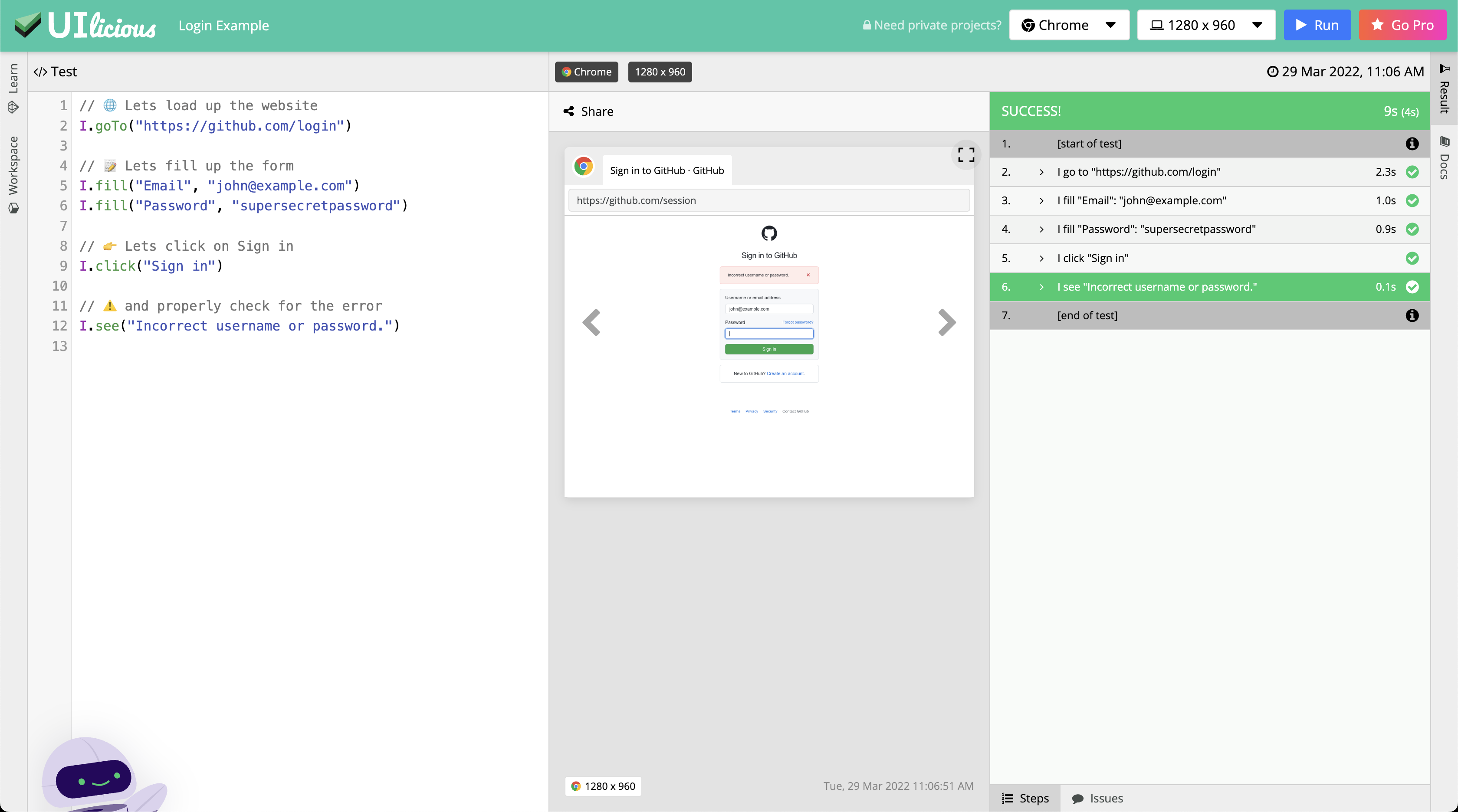
To get started, you’ll need a place to write and run your test.
If you’re new to UI-licious, the easiest way is to use Snippets — a free, public playground that runs entirely in the browser. It’s ideal for quick experiments and learning the basics, with no setup required.
INFO
The UI-licious platform comes in three flavors, depending on your needs and preference:
- Snippets : A free public playground for quick tests, demos, and experiments
- TAMI Studio : A next-generation test authoring studio with built-in AI assistance
- Web IDE : Our classic experience — a professional workspace for teams, with private projects, scheduling, and notifications
Writing your first test
Copy this test script and paste it into the editor:
js
// Go to GitHub
I.goTo("https://github.com/login");

// Fill in login form
I.fill("Username or email address", "brucewayne");
I.fill("Password", "supersecretpassword");

// Click "Sign in"
I.click("Sign in");

// Verify login is unsuccessful
I.see("Incorrect username or password");
This test checks that the GitHub login page correctly displays an error message when a user enters invalid credentials.
Even in this short example, you can already see the core idea behind UI-licious tests — they read like a user’s actions, not like code that targets HTML elements.
This example introduces four of the most commonly used commands:
I.goTo()— navigates the browser to a pageI.fill()— fills in an input field using its visible labelI.click()— clicks a button or element using its visible textI.see()— asserts that a text or element is visible on the page
INFO
You can still use CSS selectors or XPath to target elements, however we recommend only using these as a last resort when an element does not have any meaningful labels to use. This is because CSS selectors or XPath often change and make the tests brittle, harder to read and maintain.
Running the test and viewing the report
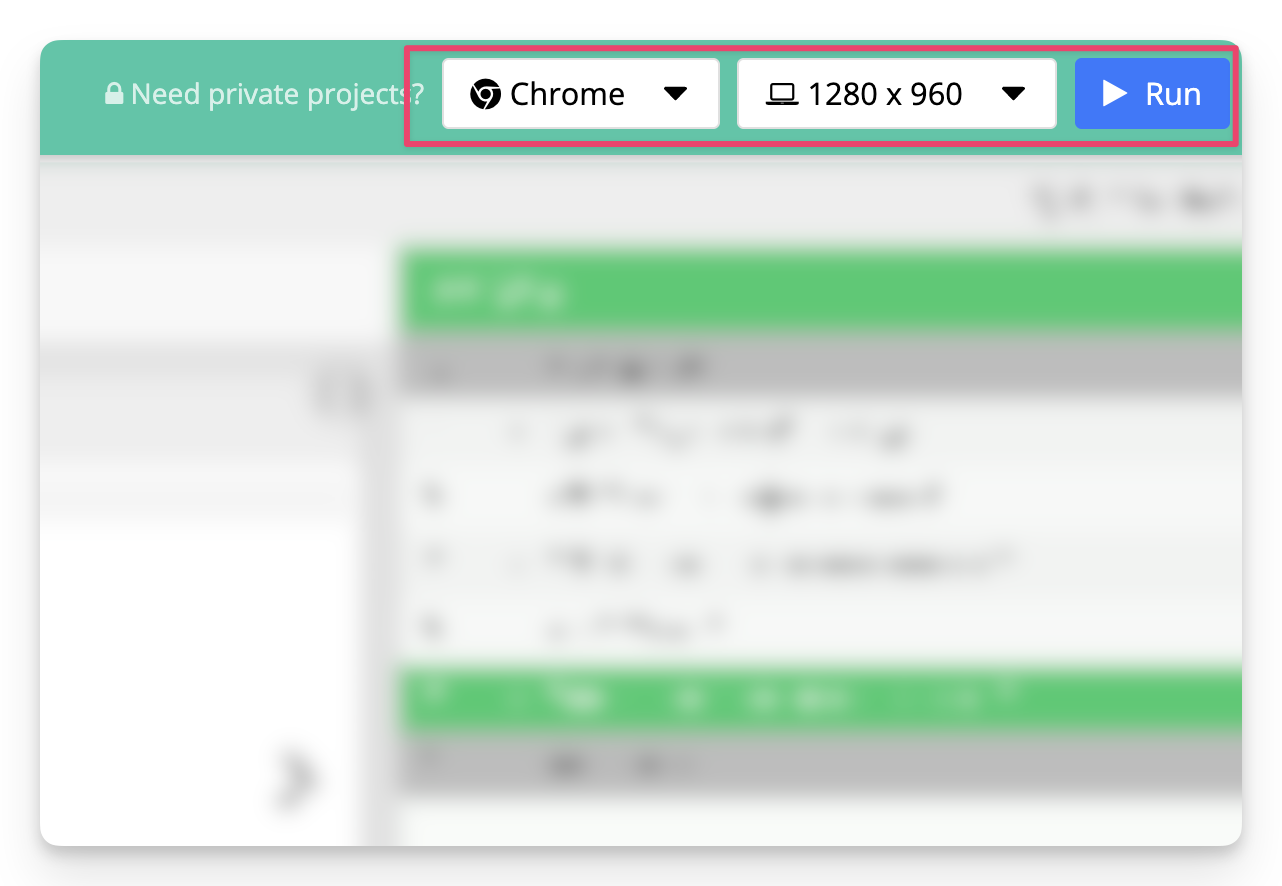
Click the "Run" button to execute the test.
The test will be run on a real browser in our cloud testing grid with the defaults:
- Browser: Chrome
- Resolution: 1280 x 840
As the test runs, the report panel shows:
- Each test step and its pass/fail status
- A screenshot for every step
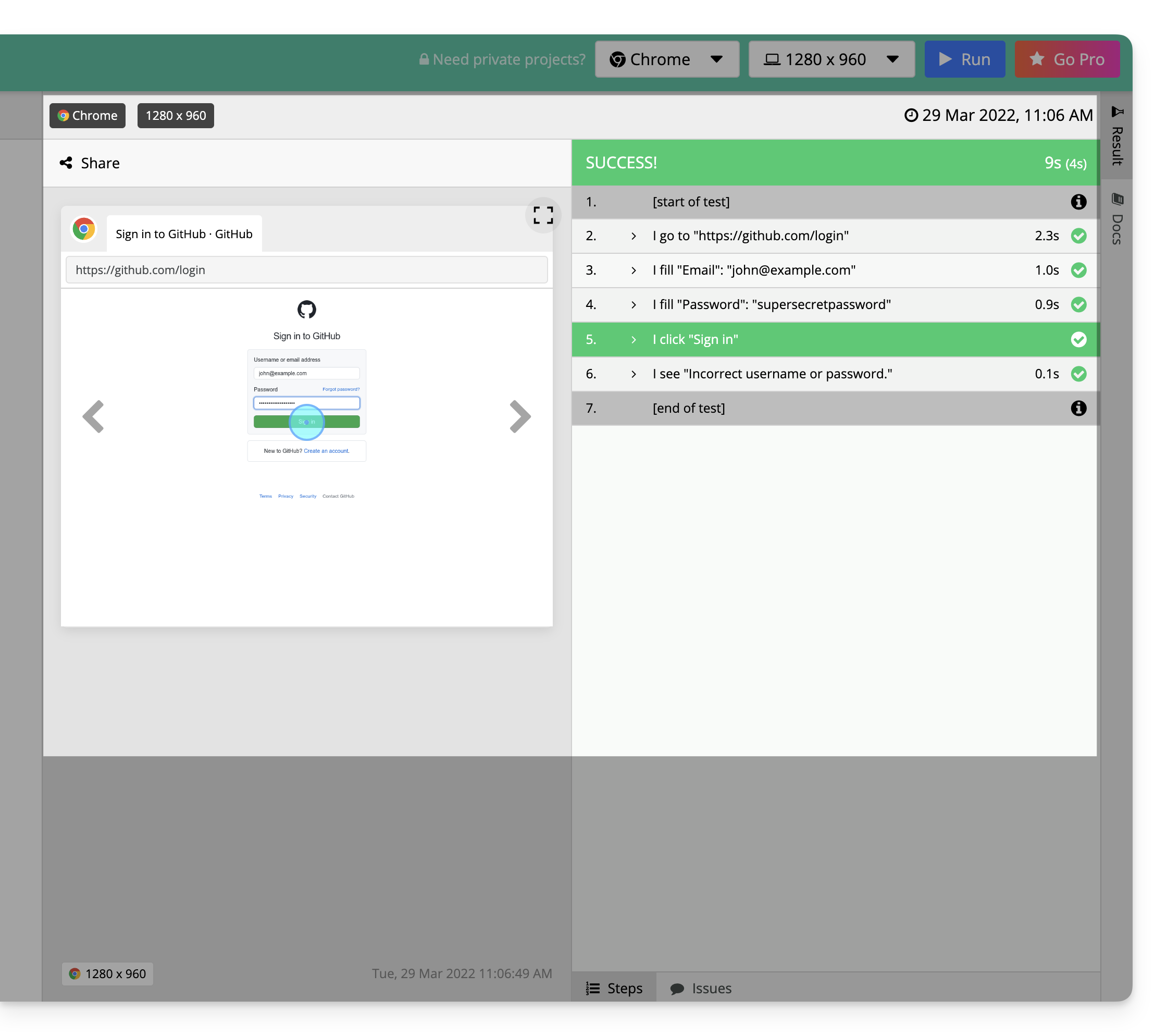
You can click on any step in the report to view its screenshot, execution details, and any error information if the step failed.
This makes it easy to understand what happened, where it failed, and what the user actually saw at that moment.
What’s next?
You’ve now written and run your first UI-licious test.
From here, you can build more realistic user journeys, add stronger validations, and start organising reusable tests for real-world applications — all while keeping your tests readable and resilient.