
Appearance
Working with Downloaded Files in UI-licious
File downloads are a common part of real-world user flows, especially in applications that generate reports, invoices, or exports. When testing these workflows, it’s often not enough to verify that a download button was clicked — you also need to confirm that the correct file was actually downloaded.
UI-licious allows you to inspect and validate files downloaded during a test, making it possible to verify download behavior as part of automated UI testing.
Listing downloaded files
TIP
If the downloaded file is very large, consider adding a generous wait using I.wait() beforehand to ensure the download has completed.
You can access downloaded files using the read-only property UI.Downloads.files or the function UI.Downloads.listFiles().
Here’s an example of the file metadata returned:
js
[
	// file 1
	{
		// name of the file
		"name": "file1.pdf",
		// location of the file
		"path": "//downloads/file1.pdf",
		// date when the file is created in epoch seconds
		"lastModified": 1678863067,
		// size of the file in bytes
		"size": 2142210
	},
	// file 2
	{
		"name": "file2.pdf",
		"path": "//downloads/file2.pdf",
		"lastModified": 1678863088,
		"size": 3058254
	}
]
You can iterate over the list using .forEach(). The list also provides .first and .last convenience getters to access the first and most recently downloaded file metadata.
Validating a file download
Use the UI.Downloads.hasFile() command to validate that a file has been downloaded.
js
UI.Downloads.hasFile("fileA.pdf")In this example, the test verifies that fileA.pdf has been downloaded.
The command waits for the file to be downloaded for up to 15 seconds (or as configured via TEST.commandTimeout). If the file is not found within this time, the test step fails.
You can also use a regular expression to validate files with generated or dynamic names:
js
// this will pass for a file named "file-1678863088.pdf"
UI.Downloads.hasFile(/(file-)(.*)(\.pdf)/i)
Validating file size
The file metadata includes the file size, which can be used to validate that a downloaded file is not empty.
Example:
js
UI.Downloads.files.forEach((file)=>{
  TEST.assert(file.size > 1, "File must be at least 1 byte.")
})
Uploading a downloaded file
Downloaded files can be used in subsequent steps, such as uploading them back into the application.
Files are stored in a virtual //downloads directory. You can reference a downloaded file by prefixing //downloads to the file name:
js
I.upload("Profile Picture", "//downloads/sample-photo.png")Alternatively, you can use the file's path property:
js
I.upload("Profile Picture", UI.Downloads.files[0].path)Loading data from downloaded CSV / JSON
Downloaded CSV or JSON files can be loaded as test data using TEST.loadDataFromCsv() and TEST.loadDataFromJson().
js
// from json
var users = TEST.loadDataFromJson("//downloads/users.json")

// from csv
var products = TEST.loadDataFromCsv("//downloads/products.csv", { header : "row" })
Conditional flows
UI.Downloads.hasFile$() is a non-throwing variant of .hasFile() that returns a boolean result of the assertion without raising an error and failing the step. This is useful for conditional logic.
Example:
js
if(UI.Downloads.hasFile$("fileA.pdf")){
	I.upload("Supporting documents", "//downloads/fileA.pdf")
}
Viewing downloaded files
Downloaded files are stored as outputs alongside the test report.
You can view them by clicking the Downloaded Files tab in the test report.
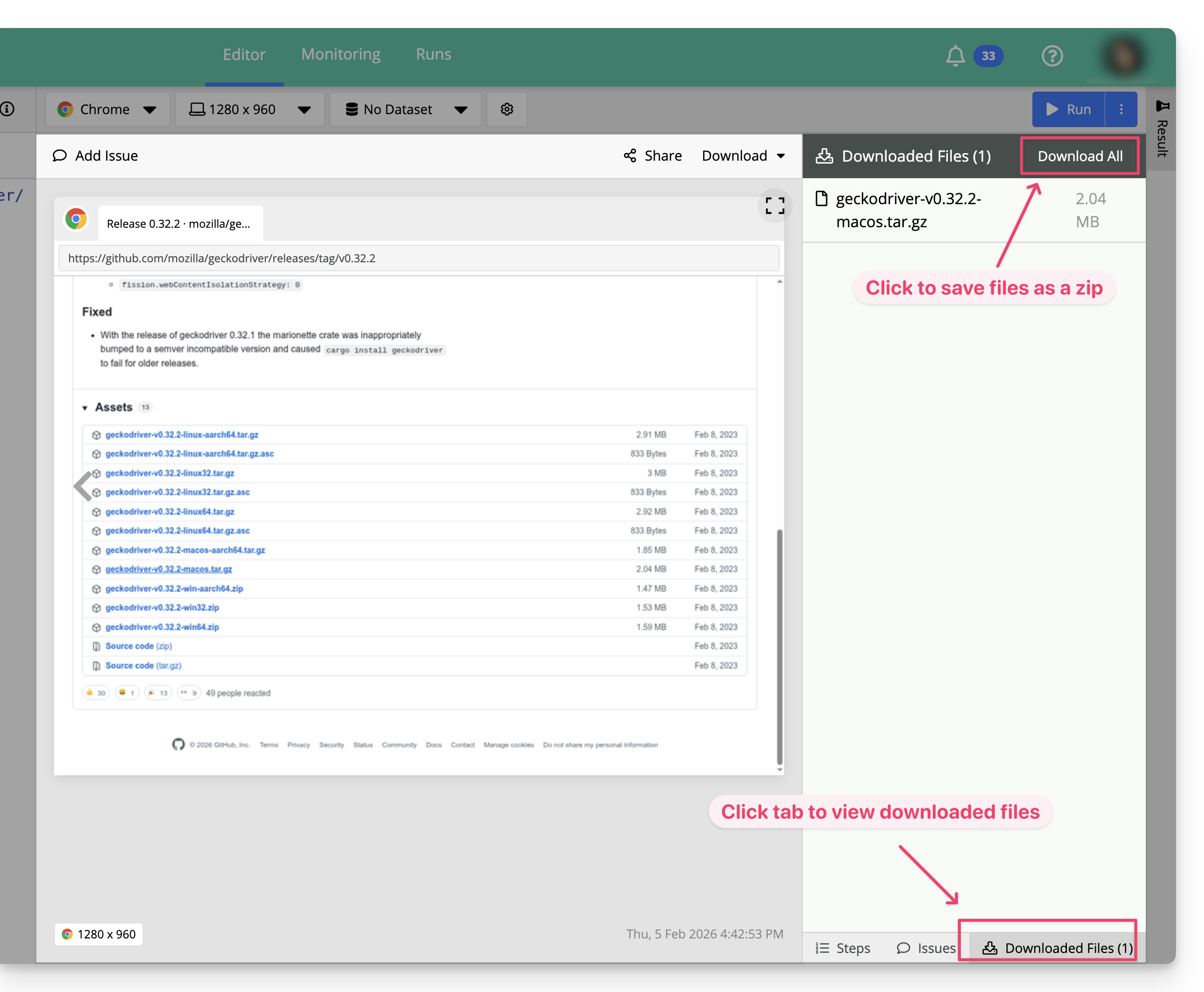
Click "Download All" to save all downloaded files as a ZIP archive.