
Appearance
Testing Salesforce Applications
Salesforce Lightning Experience is built on a modern component architecture—primarily Lightning Web Components (LWC) and Aura components.
Because Salesforce encapsulates its UI components inside Shadow DOM trees, generates dynamic DOM IDs, and enforces strict security policies, automating Salesforce with traditional testing libraries like Selenium or Playwright often requires brittle XPath queries, custom JavaScript workarounds, or tedious chained shadow-piercing locators.
UI-licious takes a different approach: it tests Salesforce semantically through visual labels, form text, ARIA attributes, and tooltips, while automatically traversing open shadow roots.
The following sections walk through each stage of automating a Salesforce application:
- Authentication: Handling login and Multi-Factor Authentication (MFA / 2FA).
- Navigation: Clicking icon buttons like the App Launcher ("9 dots").
- Component Interaction: Transparently querying into Shadow DOM and LWC.
- Sandboxed Pages: Automating Visualforce and Setup wizards inside
<iframe>containers.
Handling Authentication & 2FA
The first step in any test script is authenticating into Salesforce. Depending on your organization's security policies, logging into Salesforce from automated test environments may trigger a Multi-Factor Authentication (MFA) challenge or device verification prompt.
There are three ways to manage authentication in UI-licious:
Method 1: IP Allowlisting (Recommended)
The simplest and most permanent solution is to allowlist the outbound IP addresses used by the UI-licious Cloud testing grid in your Salesforce org. When test traffic originates from a trusted IP range, Salesforce permits direct login with username and password without triggering a 2FA challenge.
To configure IP allowlisting (requires Salesforce Admin privileges):
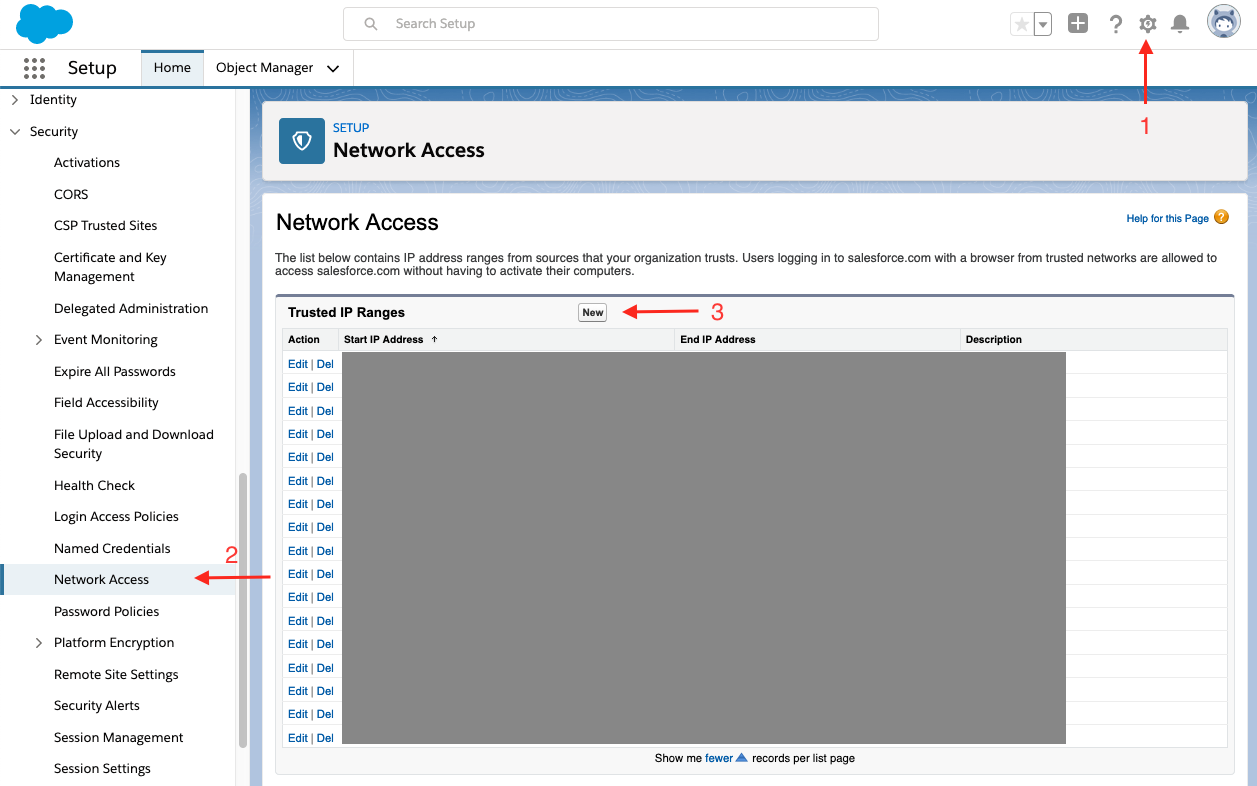
- Log into your Salesforce org, click the gear icon in the top right, and select Setup.
- In the Quick Find box on the left, navigate to Security > Network Access.
- Click New to add trusted IP ranges.
- Add the UI-licious Cloud Outbound IP Addresses to your trusted IP ranges.
Once configured, standard login scripts run without verification prompts:
js
I.goTo("https://login.salesforce.com")
I.fill("Username", DATA.sf_username)
I.fill("Password", DATA.sf_password)
I.click("Log In")

// Assert landing on the Lightning home page
I.see("Home")
Method 2: Solving 2FA with the Built-In TOTP Plugin
If your organization enforces MFA and cannot allowlist IP addresses, you can automate the 2FA challenge using UI-licious's built-in totp plugin.
When setting up an Authenticator App in Salesforce, copy the Base32 shared secret key and store it in your UI-licious Project Variables as DATA.sf_totp_secret.
In your test script, load the totp plugin and conditionally handle the verification prompt:
js
let totp = TEST.loadPlugin("totp")

// Standard login
I.goTo("https://login.salesforce.com")
I.fill("Username", DATA.sf_username)
I.fill("Password", DATA.sf_password)
I.click("Log In")

// Handle 2FA prompt if presented
if (I.see$("Verification Code")) {
    let otp = totp.generateOTP(DATA.sf_totp_secret)
    I.fill("Verification Code", otp)
    I.click("Verify")
}

// Confirm successful login
I.see("Home")
Learn More About TOTP
For complete details on configuring secret keys, custom digit lengths, and time buffers, see the Two-Factor Authentication (TOTP) Guide.
Method 3: Session URLs via Salesforce CLI
For continuous integration (CI/CD) pipelines where the Salesforce CLI (sf / sfdx) is integrated, you can generate a one-time frontdoor login URL with an active session token:
bash
# Generate a login URL for your scratch org or sandbox
sf org open --target-org my-sandbox --url-only
This returns a frontdoor URL containing a temporary session ID:
https://myorg.salesforce.com/secur/frontdoor.jsp?sid=00D...You can pass this URL into your test execution via Project Variables or CLI data flags:
js
// Directly access the authorized session without credentials
I.goTo(DATA.salesforce_frontdoor_url)
I.see("Home")
Clicking Icon Buttons
Once authenticated, navigating Salesforce Lightning relies heavily on icon-only buttons—most notably the App Launcher ("9 dots" icon) in the navigation bar.
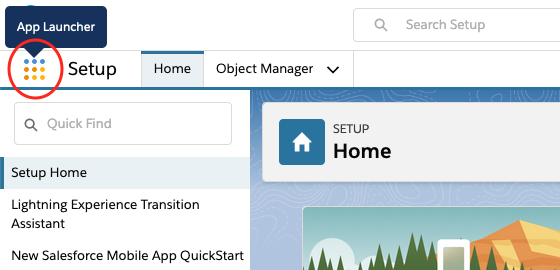
UI-licious automatically inspects accessibility labels (aria-label), title attributes, and hover tooltips for buttons, allowing you to target them directly by their human-readable name:
js
// Click the "9 dots" button
I.click("App Launcher")

// Wait for the launcher menu to appear
I.see("Search apps and items")

// Search for and open the desired application
I.fill("Search apps and items", "Sales")
I.click("Sales")
Querying into Shadow DOM (LWC Support)
After navigating to an application, tests interact with Salesforce records, forms, and detail views. Salesforce builds these interfaces using Lightning Web Components (LWC), which use standard Web Components and the Shadow DOM specification to encapsulate styles and markup inside #shadow-root trees.
Why Shadow DOM is Difficult in Selenium & Playwright
In conventional testing tools, shadow boundaries act as strict isolation barriers:
Selenium WebDriver: Standard locators (
findElement,By.xpath,By.cssSelector) cannot penetrate#shadow-root. To access an element inside an LWC component, testers must write custom JavaScript or chain cumbersome.getShadowRoot()calls at every level of the component hierarchy:java// Selenium: Fragile multi-step shadow root traversal WebElement lwcHost = driver.findElement(By.cssSelector("lightning-input")); SearchContext shadowRoot = lwcHost.getShadowRoot(); WebElement input = shadowRoot.findElement(By.cssSelector("input")); input.sendKeys("Acme Corporation");If Salesforce refactors or wraps the component in an inner sub-component, the chained locators break.
Playwright / Cypress: While modern CSS locators in Playwright can pierce open shadow roots, XPath expressions cannot cross shadow boundaries, and interacting with deeply nested, slotted elements in complex Salesforce layouts often requires verbose element chains like
page.locator('lightning-button').locator('button').
How UI-licious Solves It
UI-licious automatically pierces open shadow roots recursively throughout the entire document tree.
When you use commands like I.fill(), I.click(), or I.see(), UI-licious inspects the rendered text, labels, and accessibility trees across all shadow boundaries seamlessly. You do not need to inspect the DOM hierarchy, locate shadow hosts, or maintain brittle chained selectors:
js
// In UI-licious, interact directly using visual labels:
I.fill("Account Name", "Acme Corporation")
I.click("Save")
Whether the input field or button is nested inside <lightning-input>, <lightning-button>, or a custom third-party LWC, UI-licious finds and interacts with it directly.
Testing Sandboxed Pages & Iframes
While modern Salesforce features run as native Lightning components, certain administrative wizards, legacy Visualforce pages, and third-party AppExchange packages run sandboxed inside <iframe> containers.
Browsers isolate iframes from the parent document. To interact with elements inside an iframe, use UI.context:
js
// Example: Creating a custom field in Setup (rendered within an iframe)
I.goTo("/lightning/setup/ObjectManager/home")
I.click("Account")
I.click("Fields & Relationships")
I.click("New")

// Define the iframe selector (e.g. using title attribute)
let IFRAME = "iframe[title*='New Custom Field']"
I.see(IFRAME)

// Switch execution into the iframe context
UI.context(IFRAME, () => {
    I.see("Step 1. Choose the field type")
    I.select("Text")
    I.click("Next")

    I.see("Step 2. Enter the details")
    I.fill("Field Label", "Tax ID")
    I.fill("Length", "20")
    I.click("Next")
})
When the UI.context block finishes, UI-licious automatically restores execution context back to the main document.
Enterprise Support
Need Support with Salesforce Testing?
Testing enterprise Salesforce deployments can involve custom integrations, Single Sign-On (SSO), complex user roles, and custom Lightning Web Components.
If your team is looking for guidance or dedicated assistance with automating your Salesforce applications, contact our team at [email protected] or visit uilicious.com/contact-sales to schedule a consultation or request an enterprise trial.
See Also
- Two-Factor Authentication (TOTP) Guide — Automate 2FA codes for Salesforce and other enterprise tools.
- Whitelisting IP Addresses for UI-licious Testing — Outbound IP ranges for the UI-licious Cloud grid.
- Targeting Elements — How UI-licious finds elements by visual text, labels, and accessibility attributes.