
Appearance
Define Test Steps with TAMI
TAMI can help you define clear and actionable test steps for any test case, using screenshots, recordings, and test case descriptions. This saves time and ensures consistency — especially for teams collaborating on test planning.
When Defining a Test Case
After you’ve created a test case, open it in the Test Case Editor.
In the Test Steps section, you’ll see a space to manually add or edit steps. You can also let TAMI suggest steps for you.
👉 Click Generate Test to let TAMI generate the test steps.
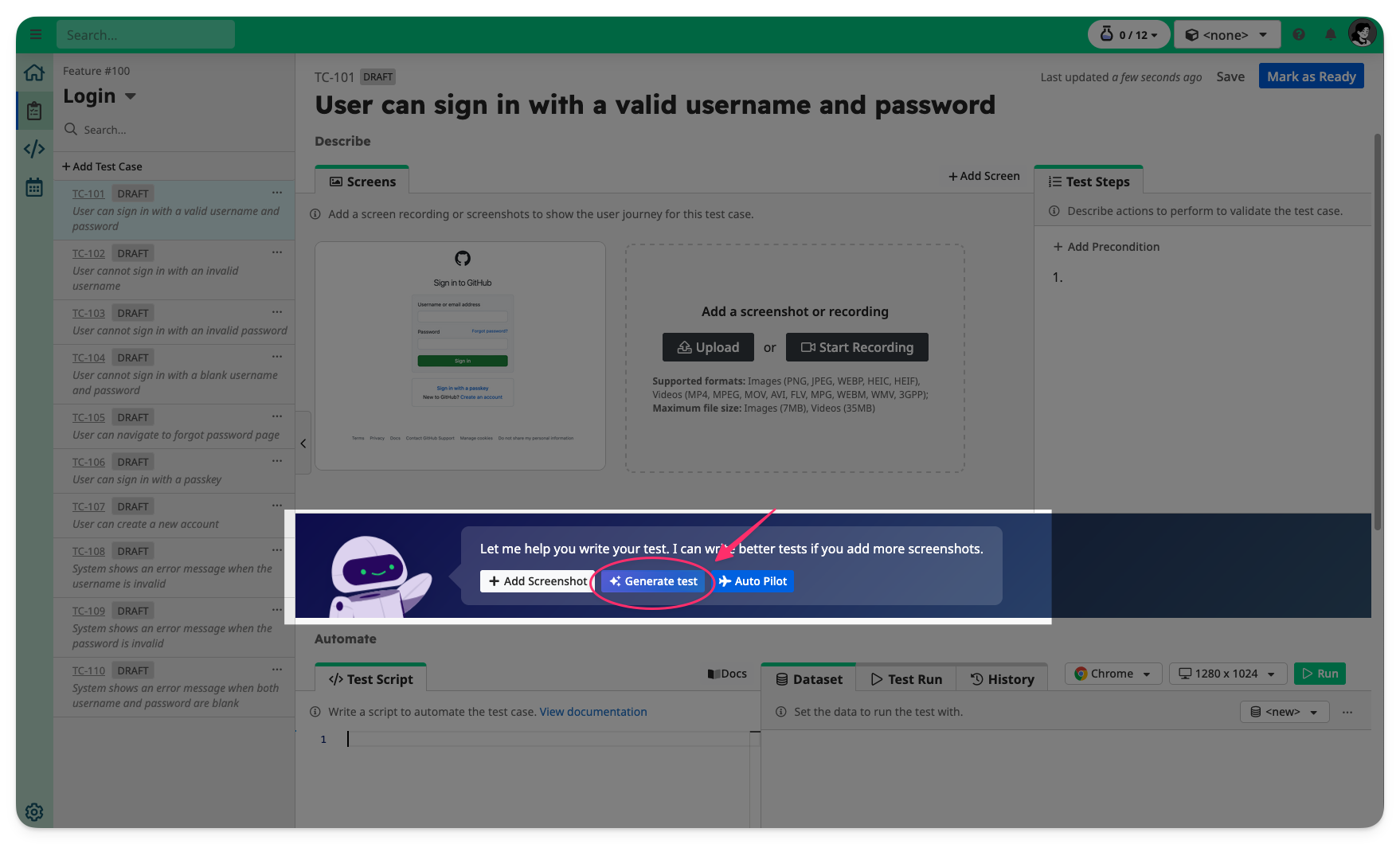
TAMI will analyse the following:
- The test case title and description
- The uploaded screenshots or recordings
Based on these inputs, TAMI will generate a sequence of test steps that describe how a user interacts with the UI and what outcomes to expect.
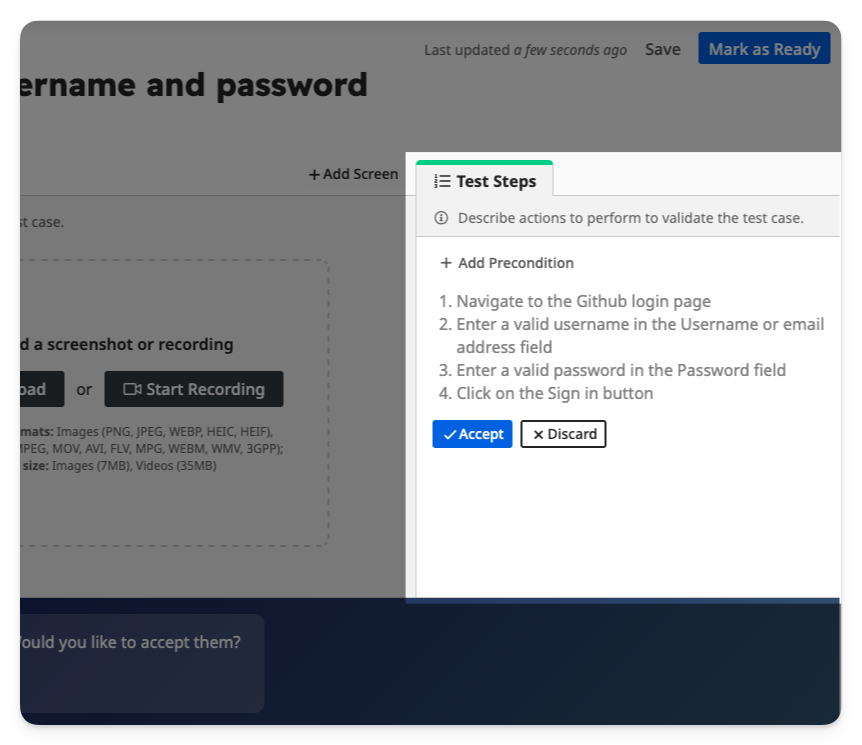
👉 You can Accept or Discard TAMI's suggested test steps.
If accepted, the steps will be added to your test case and used as the basis for generating an automation script.
TIP
For Better Results:
- Use clear, descriptive test case titles
- Upload clean, relevant screenshots or a recording of the flow
- Make sure key UI elements are clearly visible
- For complex flows, a single recording is better than multiple screenshots