
Appearance
Setting up Microsoft Notification for Jobs
Stay up to date with your test runs by setting up Microsoft Teams Notifications for scheduled jobs.
You can choose to receive alerts when a test fails or completes, ensuring your team stays in the loop.
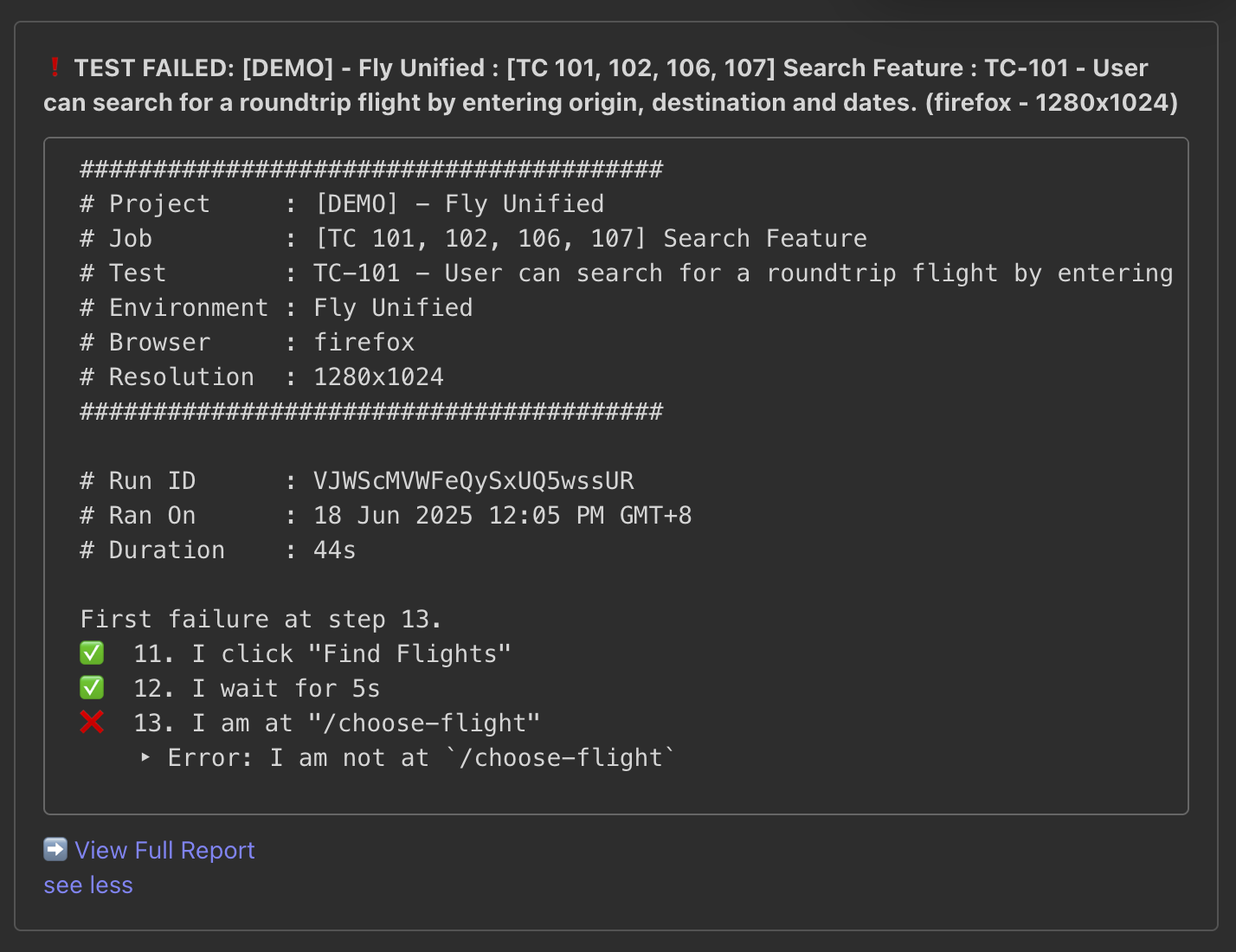
For example, if a test fails, you'll receive an message like this:
1. Create an incoming webhook in Microsoft Teams
To set up the connection between Jobs and your Microsoft Teams channel, you first need to create an incoming webhook. Follow these steps:
👉 Open Microsoft Teams and go to the Teams view.
👉 Navigate to the channel where you want to receive notifications.
👉 Click on ••• next to the channel name, then select Manage channel.
👉 Under the Connectors section, click Edit.
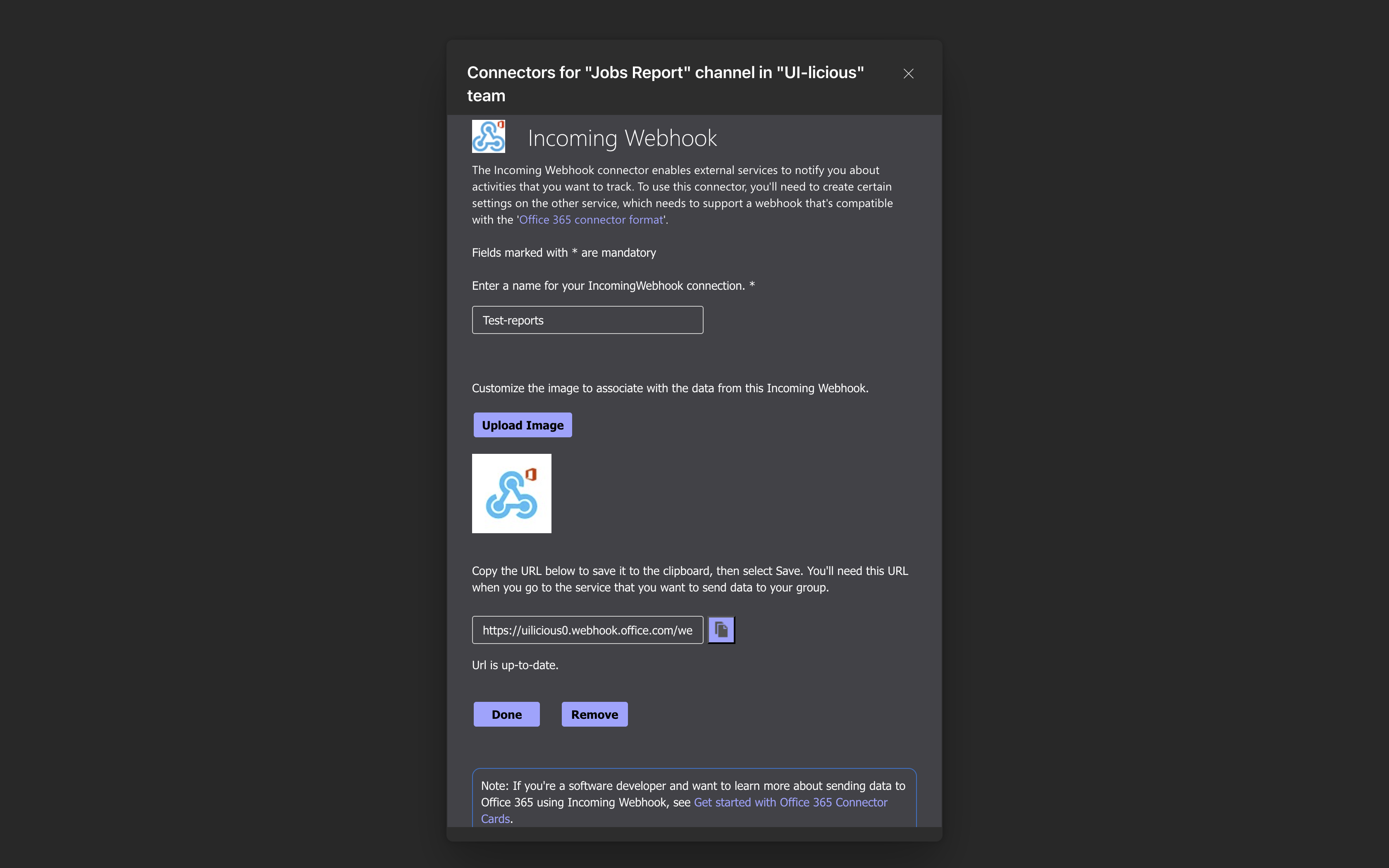
👉 In the sidebar, search for “Incoming Webhook”, then click Add (or Configure if already added).
👉 Provide a name (e.g., “TAMI Notifications”) and optionally upload a custom icon.
👉 Click Create and copy the generated webhook URL.
👉 Click Done to save.
2. How to Set up Microsoft Teams notification
👉 Navigate to the Jobs tab
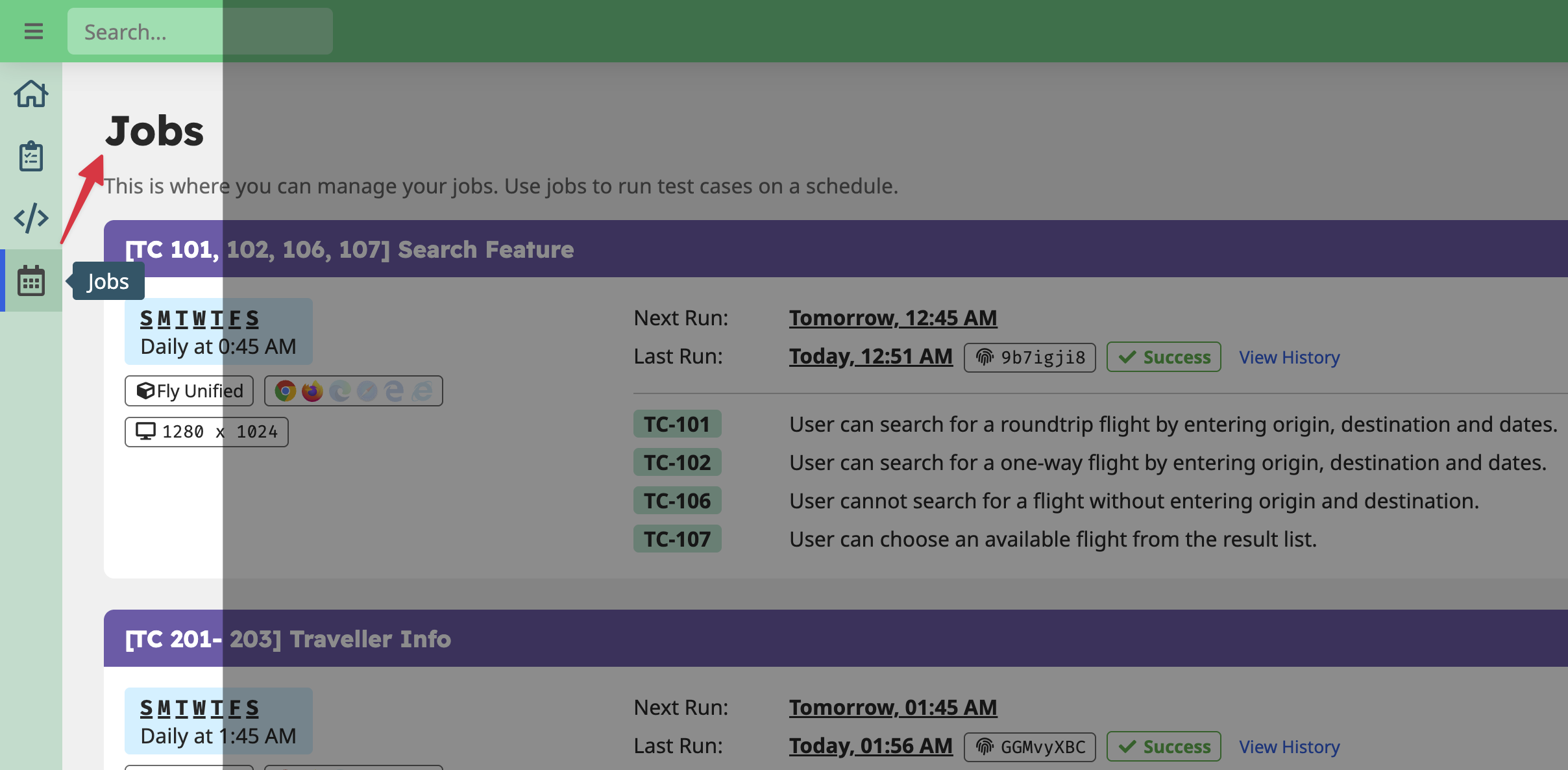
👉 Edit an job or create a new job
👉 Click on the Notifications section.
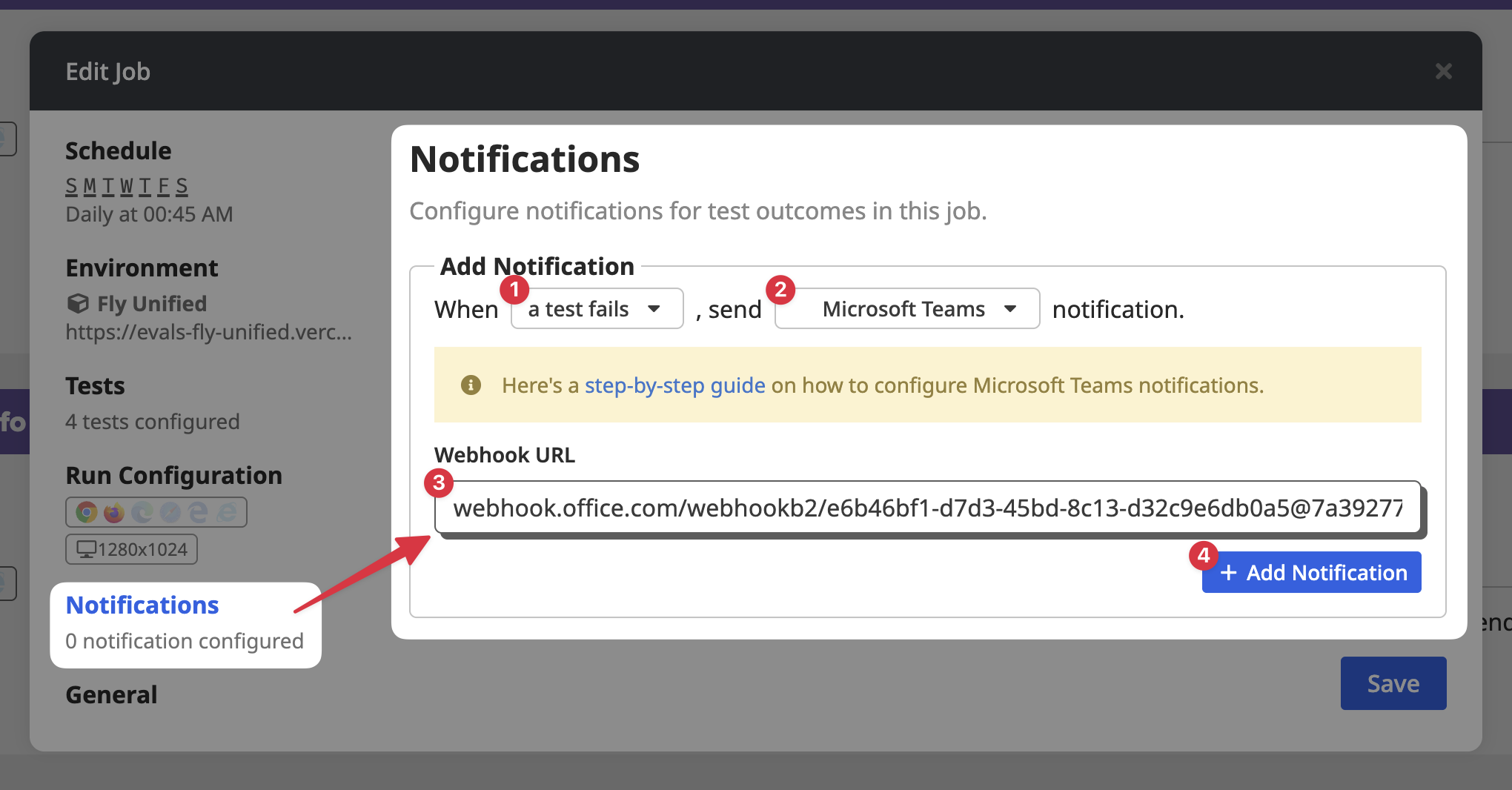
👉 Select when to trigger the notification:
- A test finishes – notifies on both success and failure.
- A test fails – notifies only when a test fails.
👉 Set notification to Microsoft Teams, and paste the webhook.
👉 Click Save to apply your changes.
Once configured, Jobs will automatically send notifications to the specified channel based on your webhook configuration.