
Appearance
Setting up Slack Notification for Jobs
Stay up to date with your test runs by setting up Slack Notifications for scheduled jobs.
You can choose to receive alerts when a test fails or completes, ensuring your team stays in the loop.
For example, if a test fails, you'll receive a message like this:
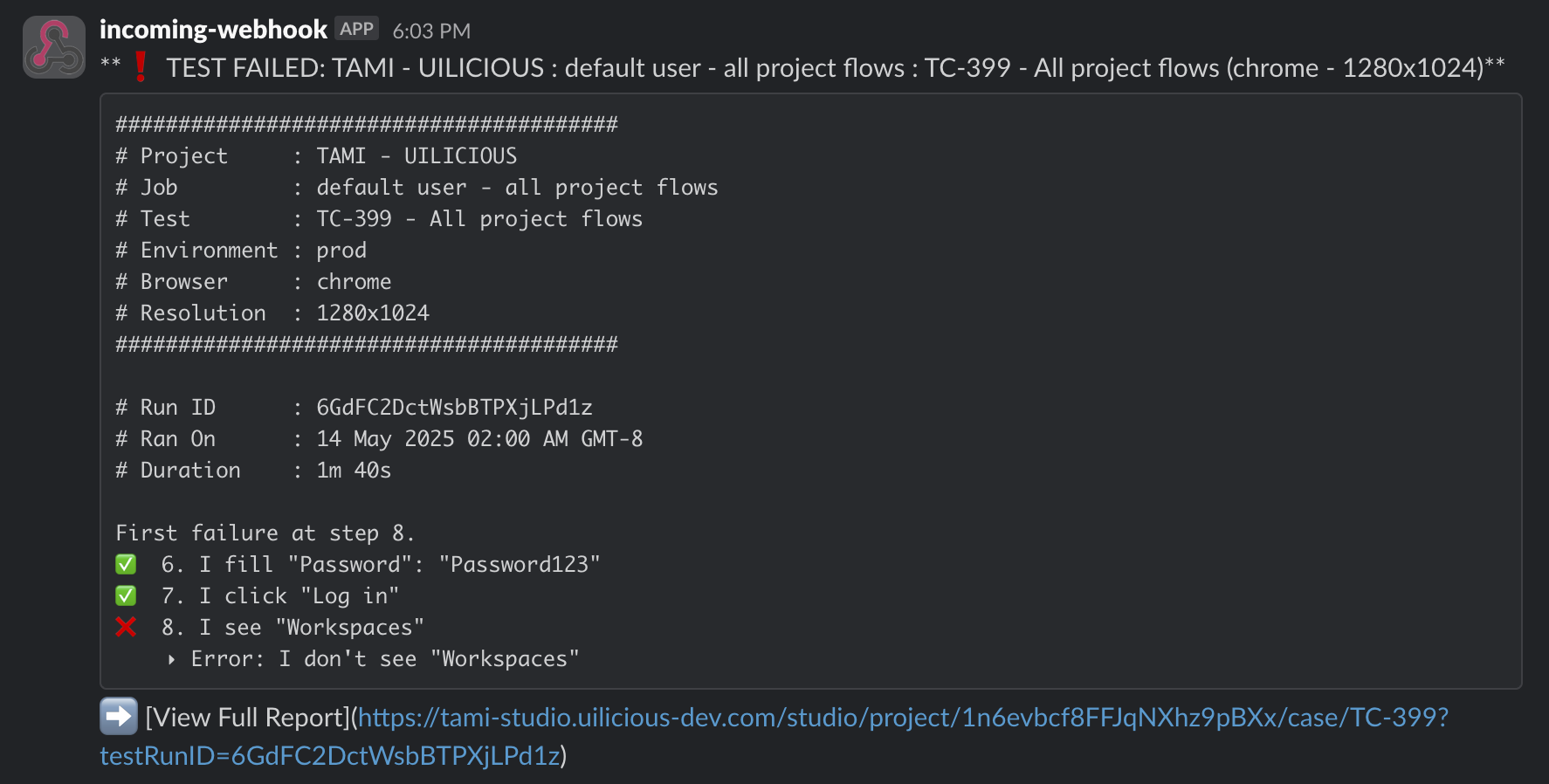
1. Create an incoming webhook in Slack
To set up the connection between TAMI Studio and your Slack workspace, you first need to create an incoming webhook:
👉 Open Slack and go to the channel where you want to receive notifications.
👉 Click on the channel name at the top to open channel details.
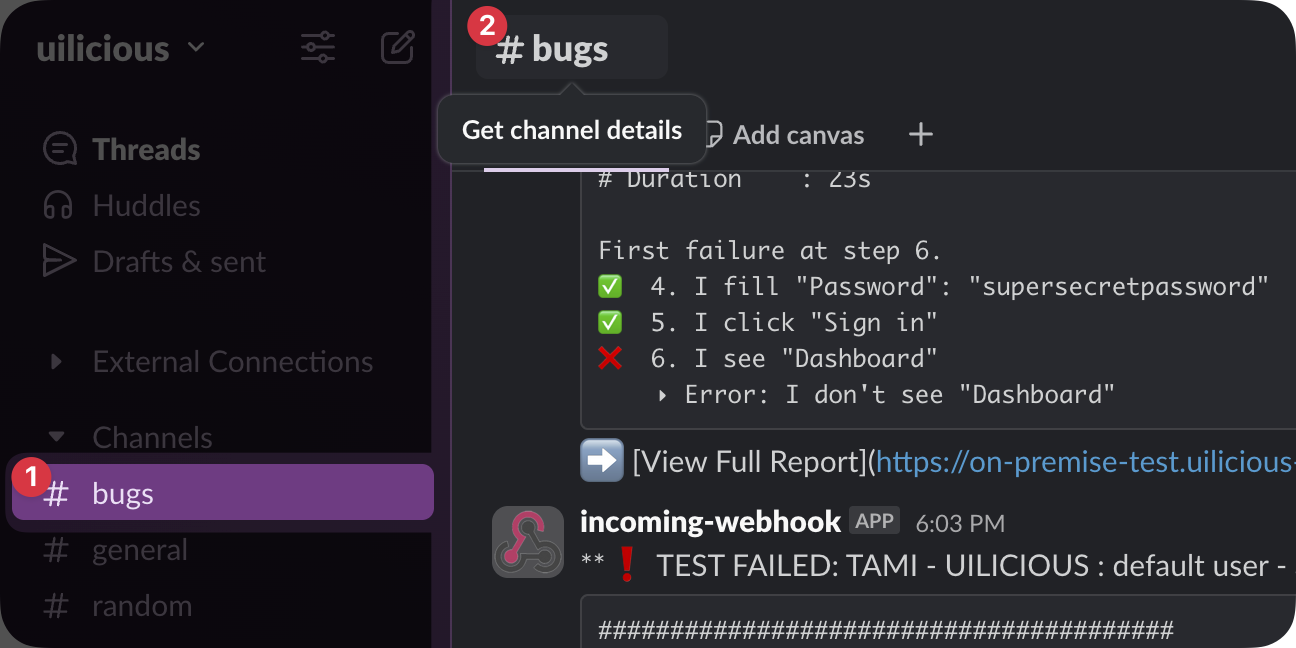
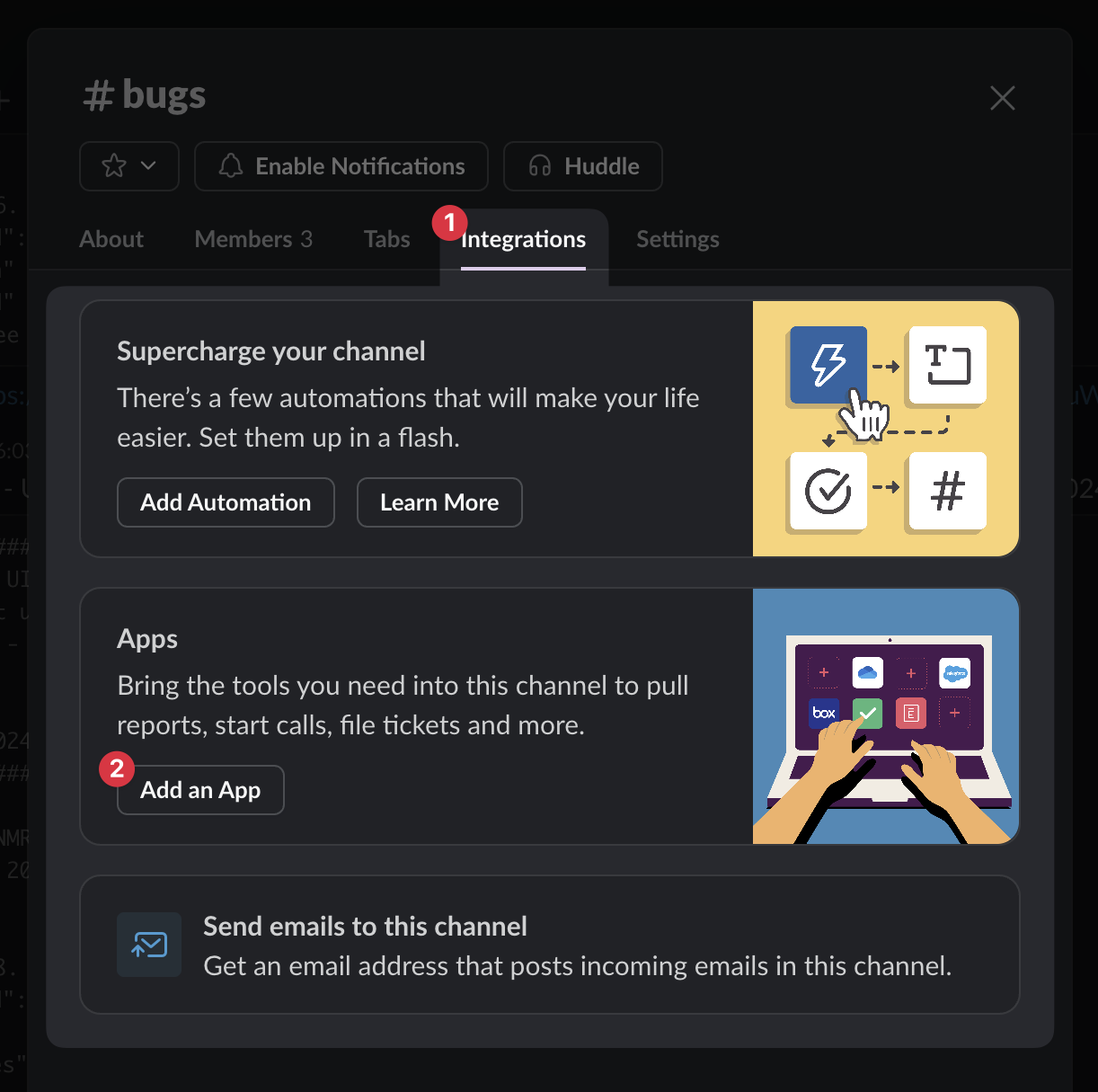
👉 In the details sidebar, click Integrations → then click Add an App.
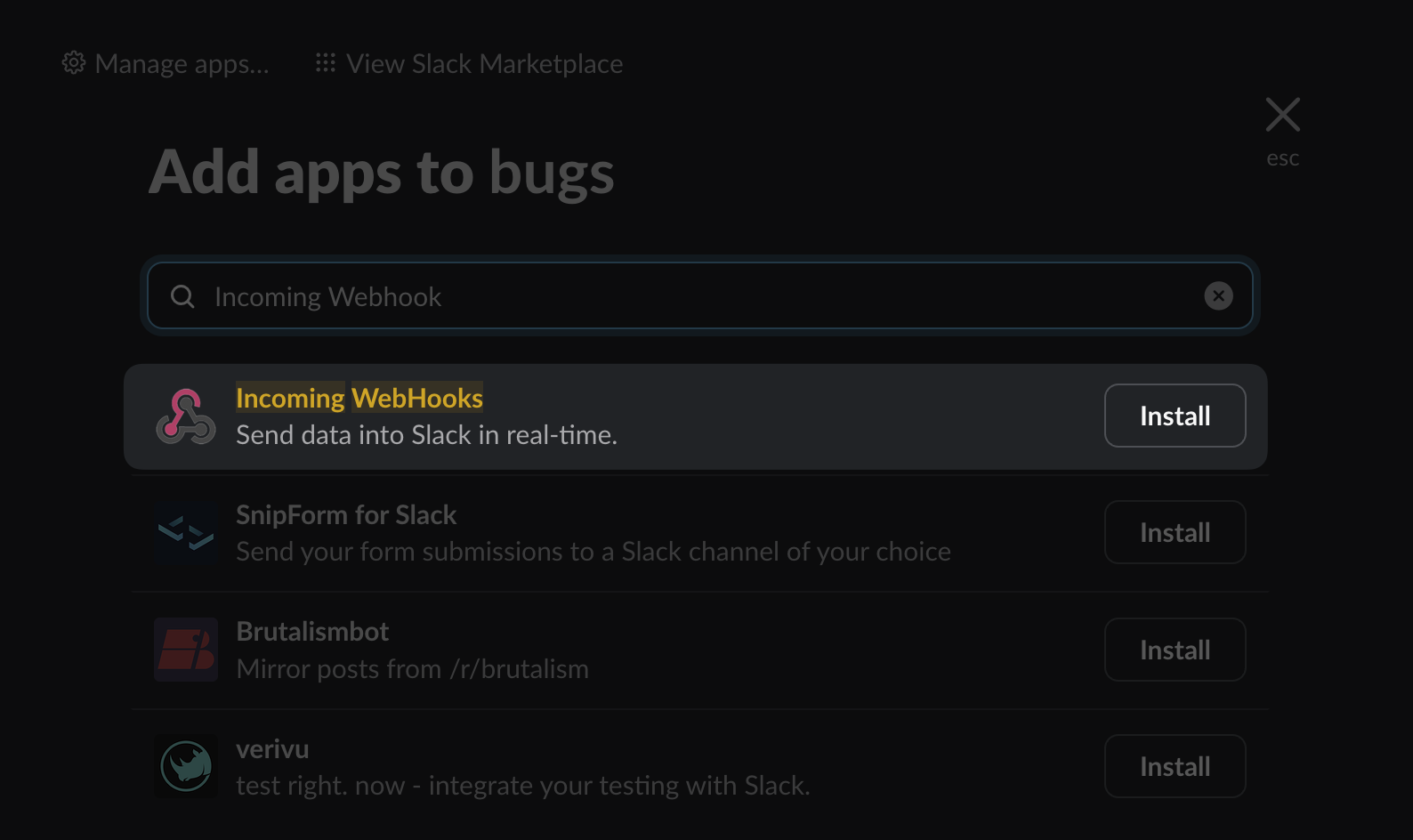
👉 In the App Directory window that appears:
- Search for Incoming WebHooks.
- Click on Incoming WebHooks, then click Add to Slack.
👉 Choose the channel you’re currently in (or another one you manage) and click Add Incoming WebHooks Integration.
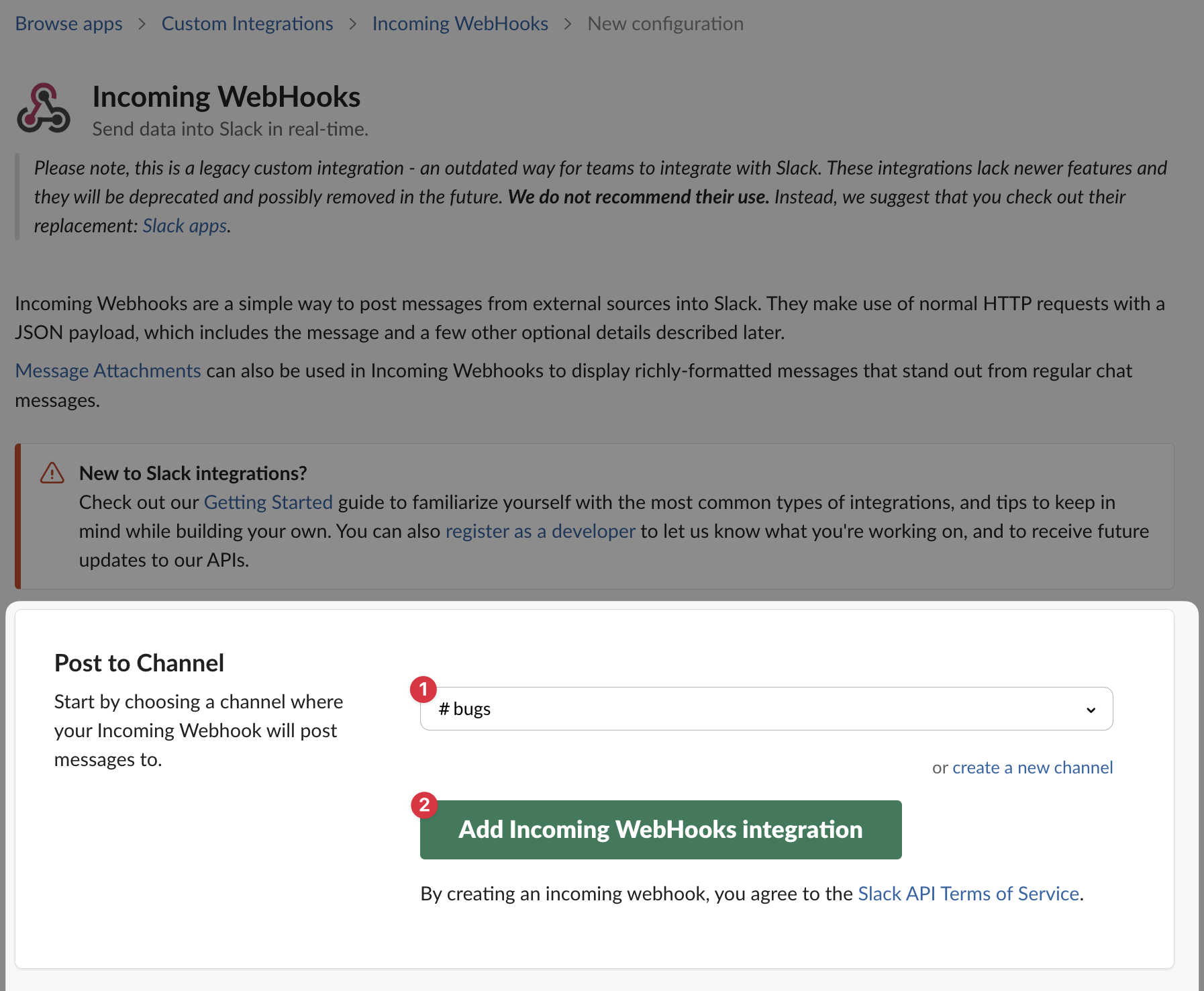
👉 Slack will generate a Webhook URL. Copy this URL.
👉 Use this Webhook URL in your external tool (e.g., TAMI Studio) to start sending notifications to the channel.
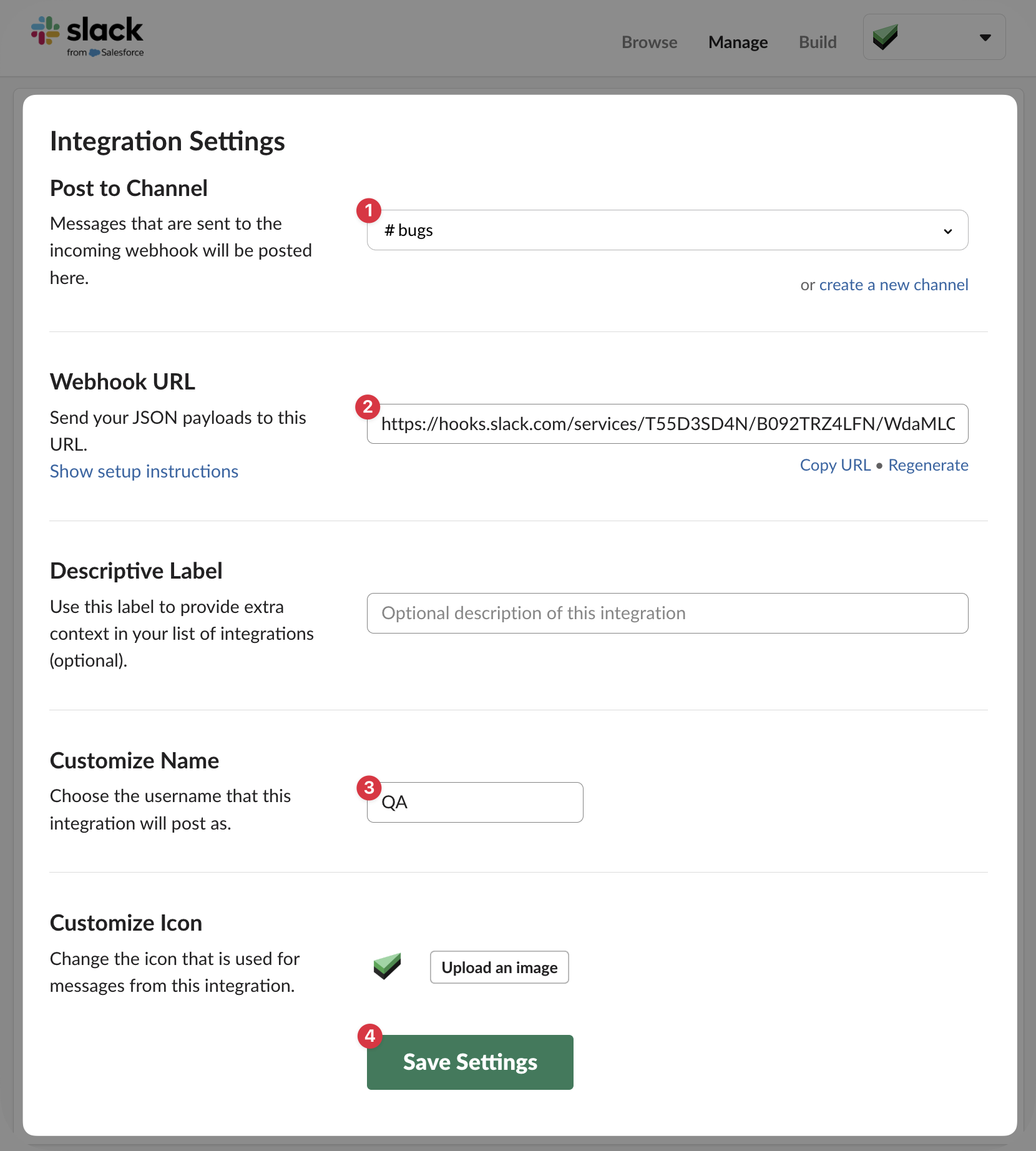
2. How to Set up Slack notification
👉 Navigate to the Jobs tab
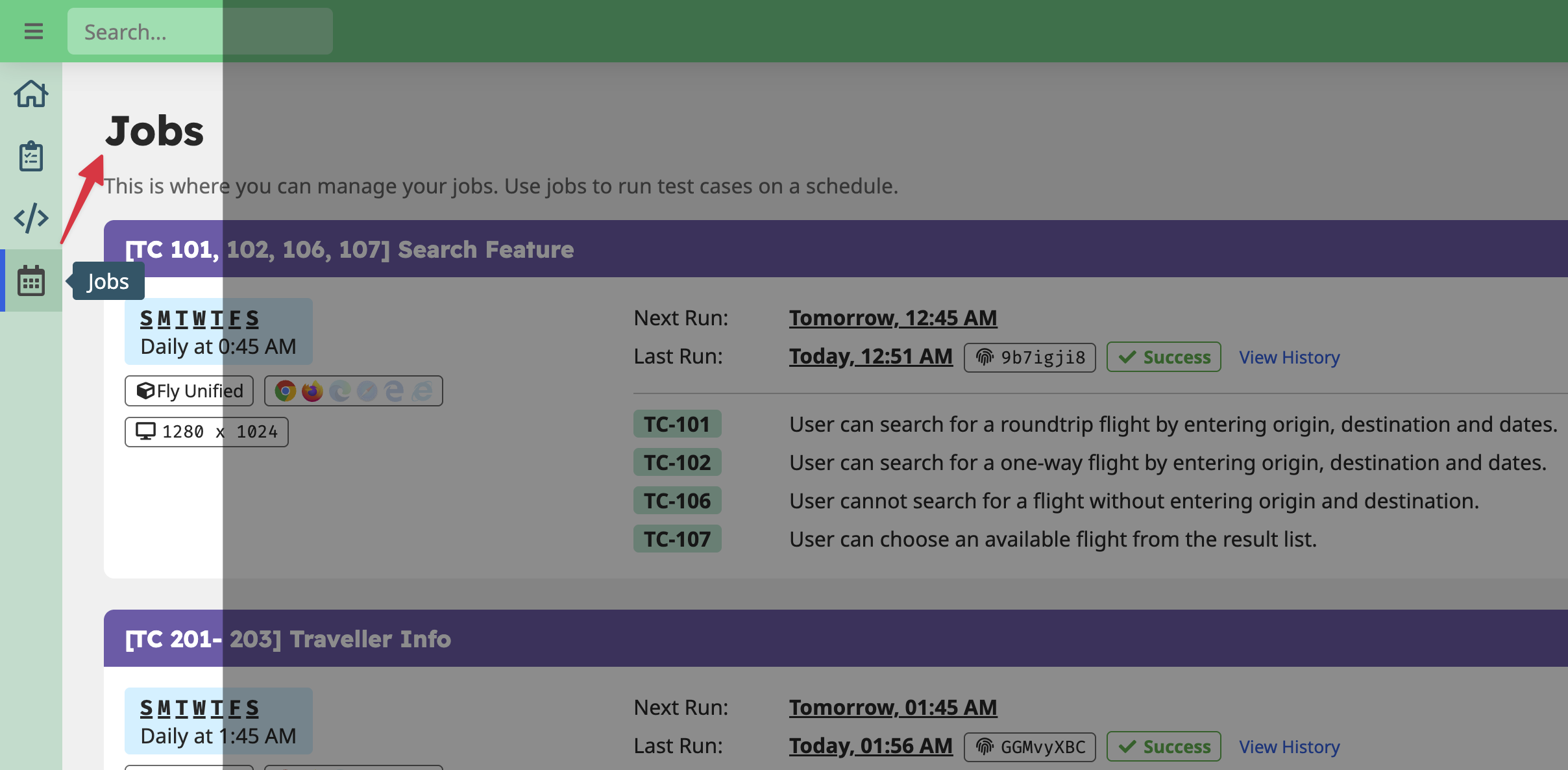
👉 Edit an job or create a new job
👉 Click on the Notifications section.
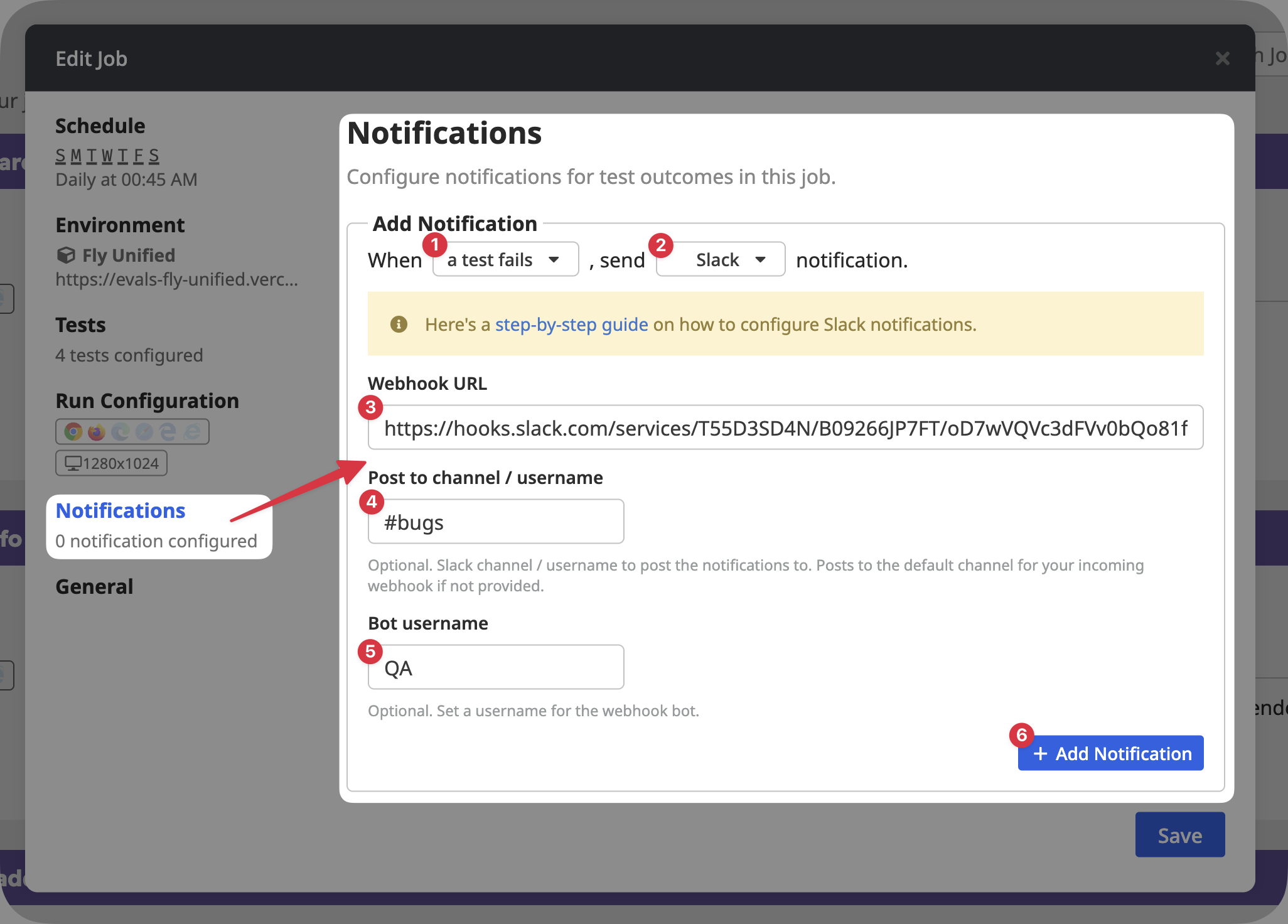
👉 Select when to trigger the notification:
- A test finishes – notifies on both success and failure.
- A test fails – notifies only when a test fails.
👉 Set notification to Microsoft Teams, and paste the webhook.
👉 Click Save to apply your changes.
Once configured, Jobs will automatically send notifications to the specified channel based on your webhook configuration.