
Appearance
Running a Test
TAMI Studio is more than a test case management tool—it's a full-featured platform for browser test automation and execution.
You can run tests at scale on a cloud testing grid, across multiple browsers, screen sizes, and geographic regions—all without local setup.
Manually running a test
You can run a test from the Test Case Editor.
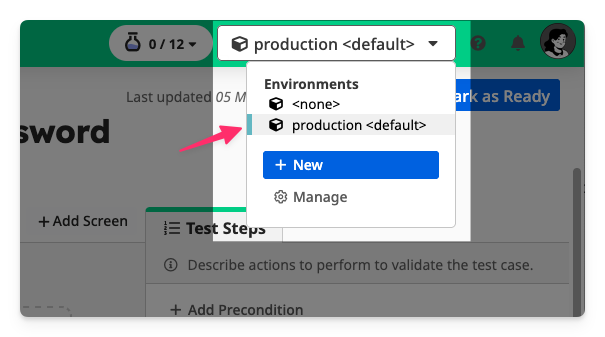
1. Select Environment
If you have defined an Environment, select the environment you want to run the test for in the top application bar.
Scroll down to the Automate section.
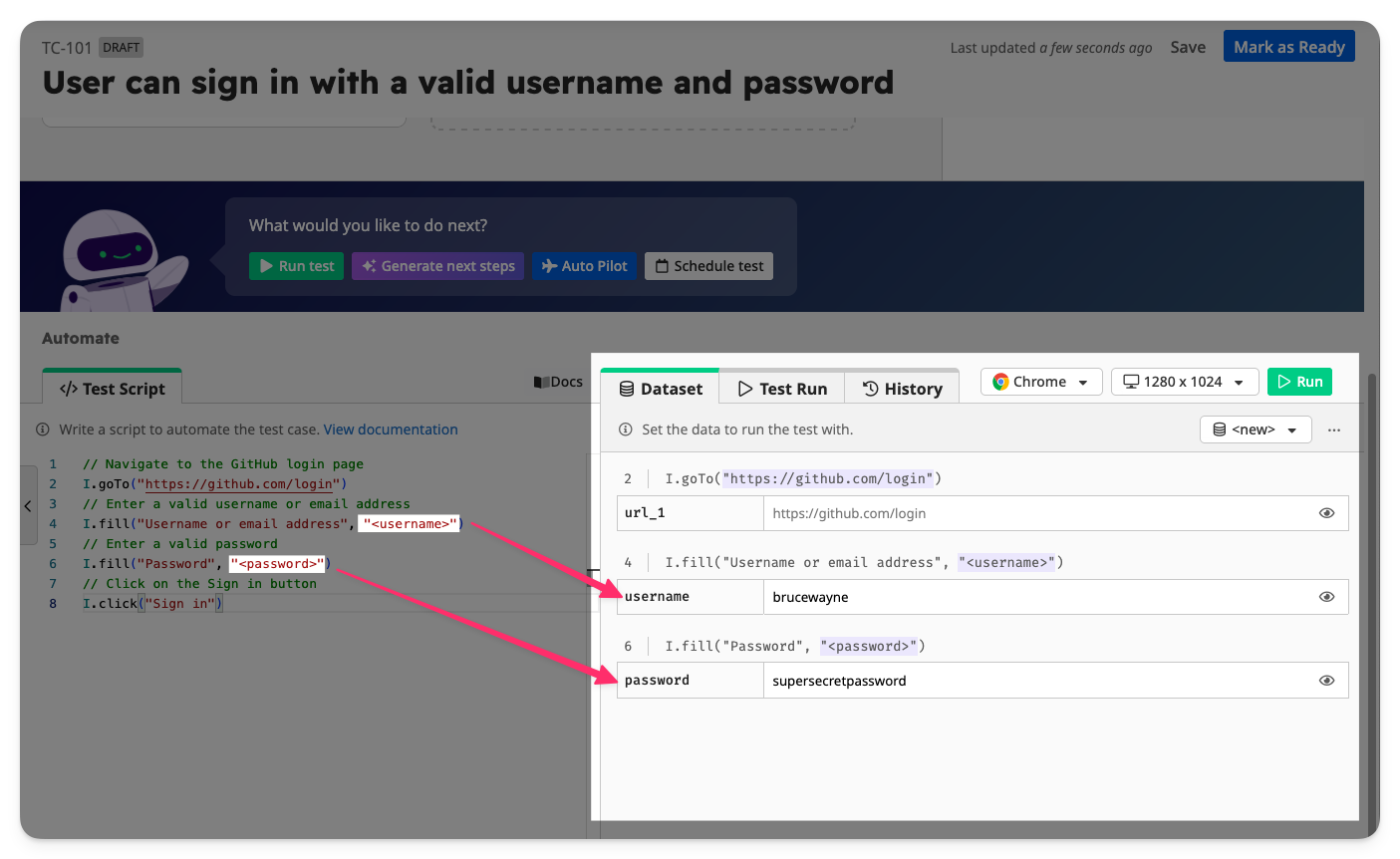
2. Set Test Data
In the Dataset section of the Automate panel, set the values for the test data or select a saved Dataset.
3. Configure Test Settings
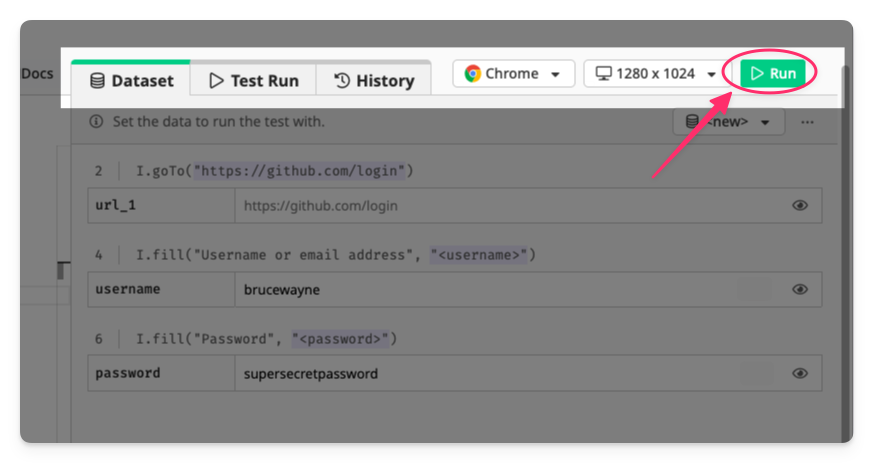
In the Test Run toolbar, click Run.
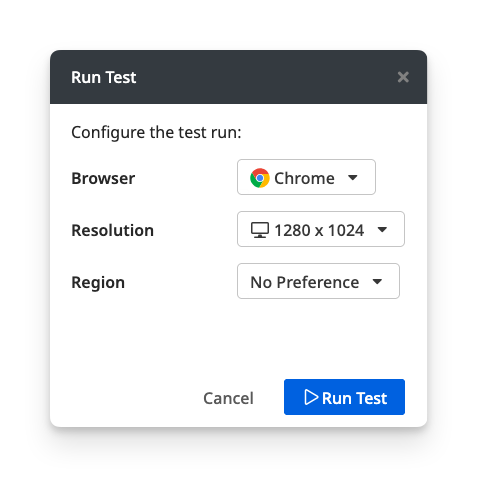
Select a browser, resolution, and region, click Run Test to proceed.
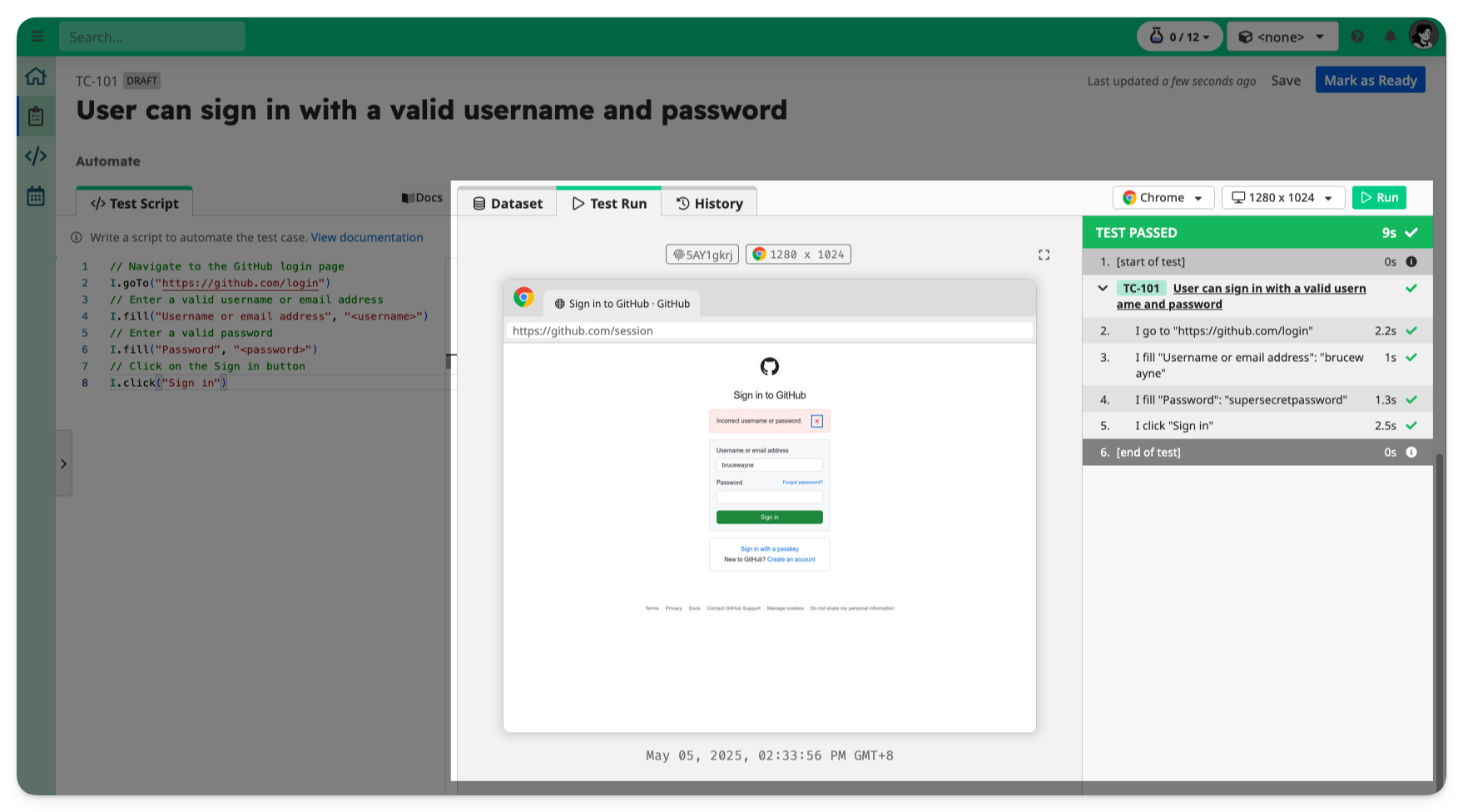
4. View the Test Run Report
TAMI Studio will automatically open the Test Run tab to show you the progress, step-by-step screenshots, and final outcome.
Scheduling a test
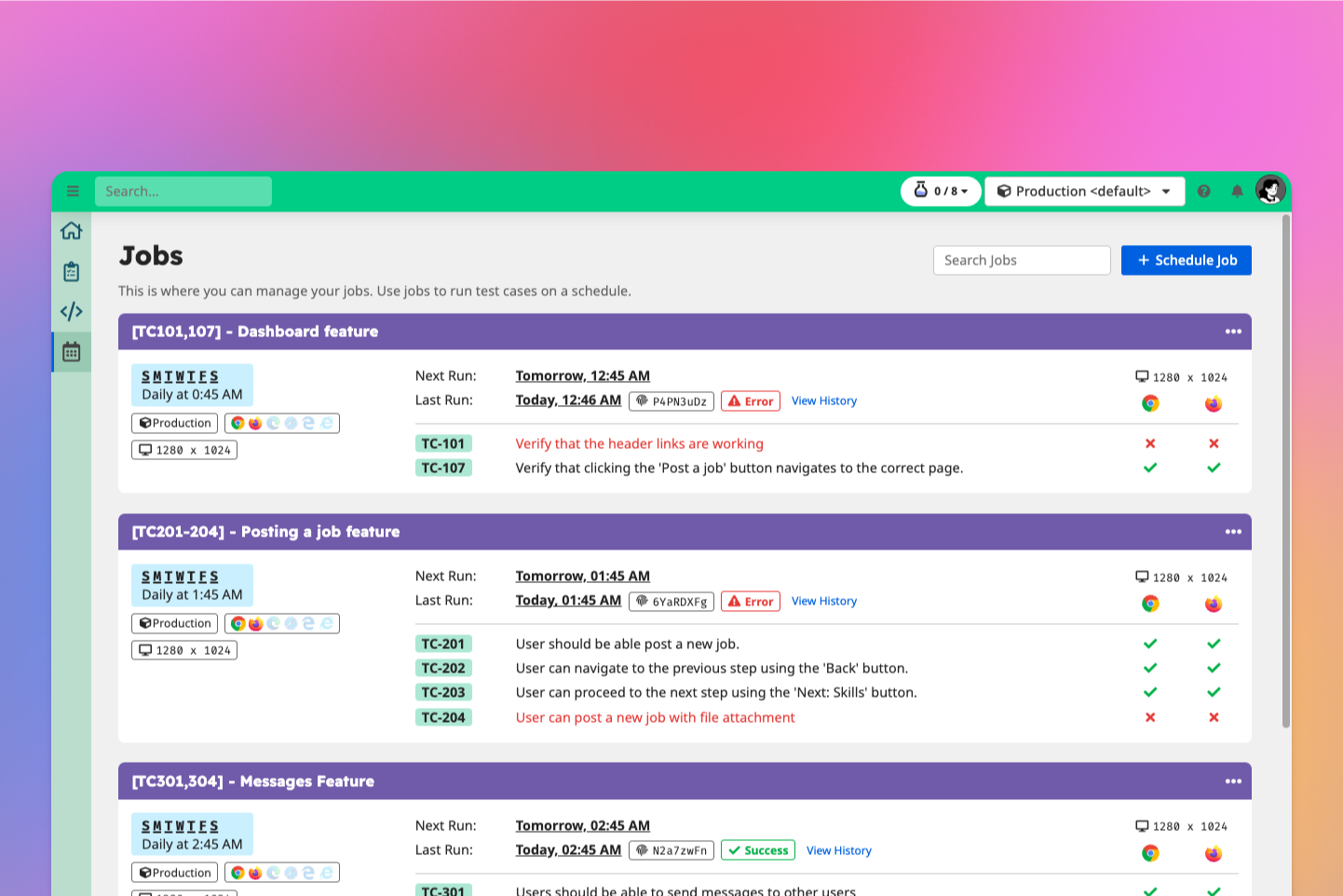
You can also setup jobs to schedule test runs and setup notifications.
➡️ Learn more
CLI
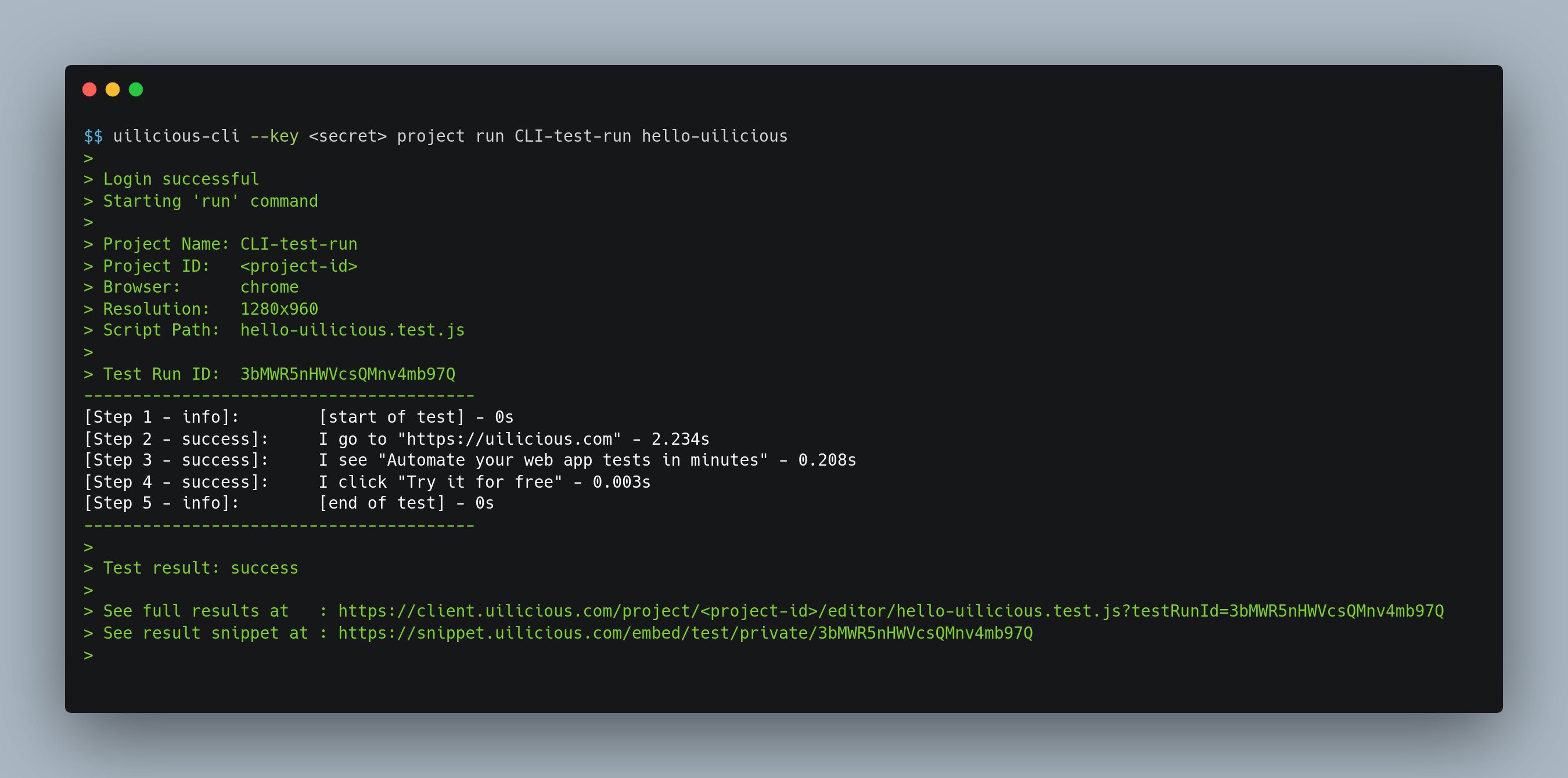
You may also run tests via a command line interface, allowing integration with your CI/CD pipeline.
➡️ Learn more