
Appearance
Dynamic Data
There are several ways to define test data to populate your test scripts during execution, allowing you to reuse your test scripts across different environments and scenarios, instead of maintaining different variations.
In TAMI Studio, these are the ways you can define test data:
- Environments: for global variables and secrets for different deployment environments, e.g. URLs
- Datasets: for variables and secrets that are specific to a test case
- External files: for loading test data from external files in supported formats (CSV, JSON)
Using Environments
Environments are most suitable for defining global variables and secrets that are specific to the deployment environment (e.g. dev, uat, production), such as URLs, API keys, and credentials.
👉 Use the environment dropdown at the top of the application to add / manage your environments and select the active environment for running tests.
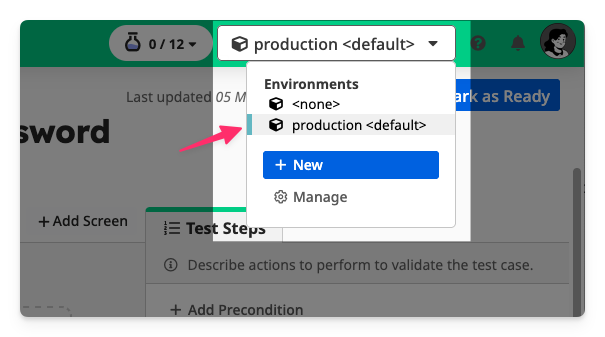
Here's what an example Environment looks like:
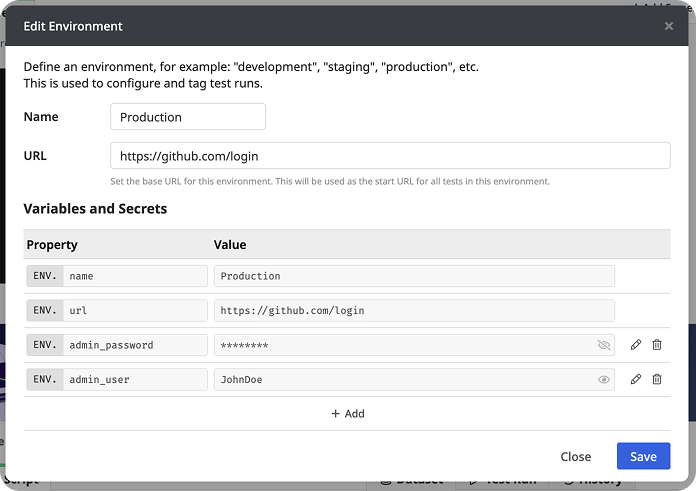
👉 You can access these variables and secrets in your test scripts using the ENV object, like this:
javascript
I.goTo(ENV.url)
I.fill("Username", ENV.admin_user)
I.fill("Password", ENV.admin_password)
I.click("Log in")
When the test is ran, the values will be populated from the selected environment, and secrets will be masked in the test reported.
➡️ Learn more about Environments in-depth!
TIP
Environments are also used for tagging test runs to a deployment environment.
Using Datasets
Datasets are useful for defining variables and secrets that are specific to test scenarios.
👉 You can declare properties of a dataset using <property> placeholder strings or via the DATA object in the test script:
Example:
javascript
I.goTo("https://example.com/login")

// "<username>" is replaced with the value of `username` from the dataset
I.fill("Username", "<username>")

// DATA.password is populated with the value of `password` from the dataset
I.fill("Password", DATA.password)

I.click("Sign in")
👉 Once a property is declared in the test script, you can set the value in the Dataset section in the Test Case Editor.
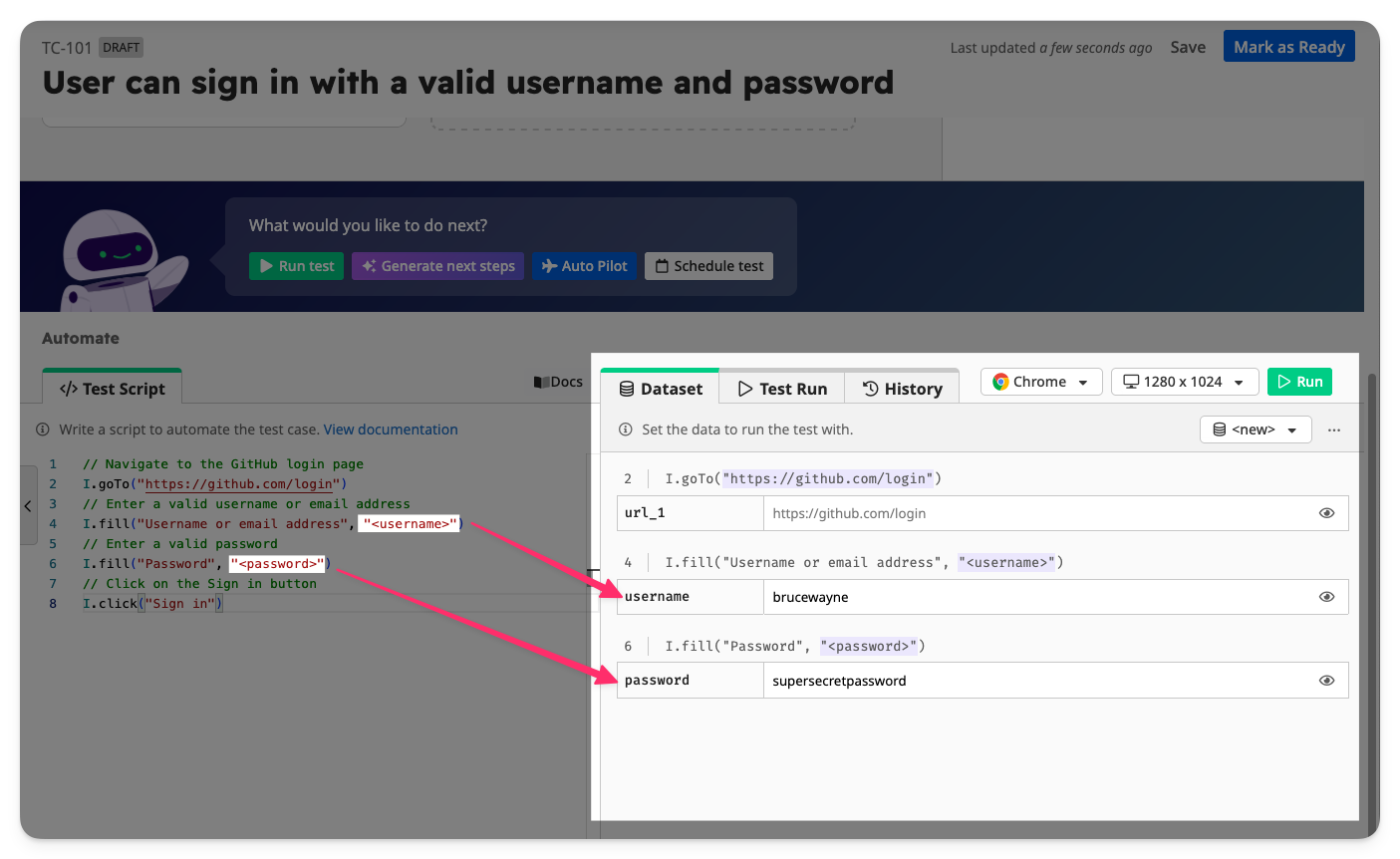
You can create multiple Datasets for the same test case.
➡️ Learn more about Datasets in-depth!
TIP
Datasets defined in the preconditions of a test case will carry forward to subsequent preconditions and the main test case.
Using External Files
You can also read test data from external files into your test script, using the following commands:
javascript
// to read from a json file
TEST.loadDataFromJson("path/to/file.json")

// to read from a csv file
TEST.loadDataFromCsv("path/to/file.csv", {header: 'row'})
➡️ Learn more about Loading Data from File in-depth!