
Appearance
Environments
Environments in TAMI Studio let you define and manage different stages of your application — such as dev, uat, staging, and production.
Environments allow you to:
- Tag and organize test runs by environment, helping you quickly identify where failures occur.
- Store environment-specific variables and secrets (e.g., base URLs, tokens, API keys) to reuse across multiple test scripts.
This makes your test automation more consistent, easier to maintain, and significantly more efficient to debug.
How to Create an Environment
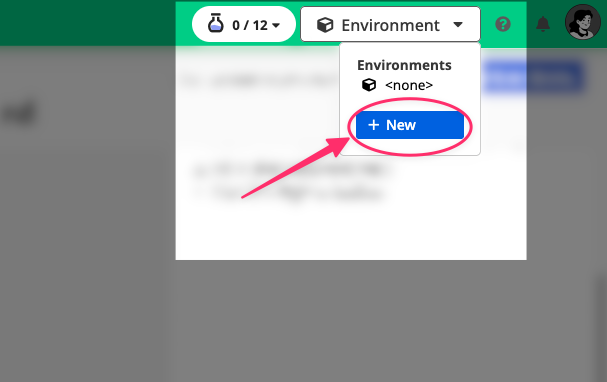
1. Open the Environment Menu
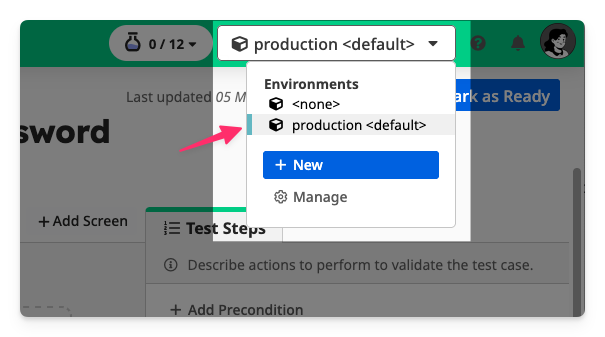
Click the Environment dropdown in the top application bar, then click + New to create a new environment.
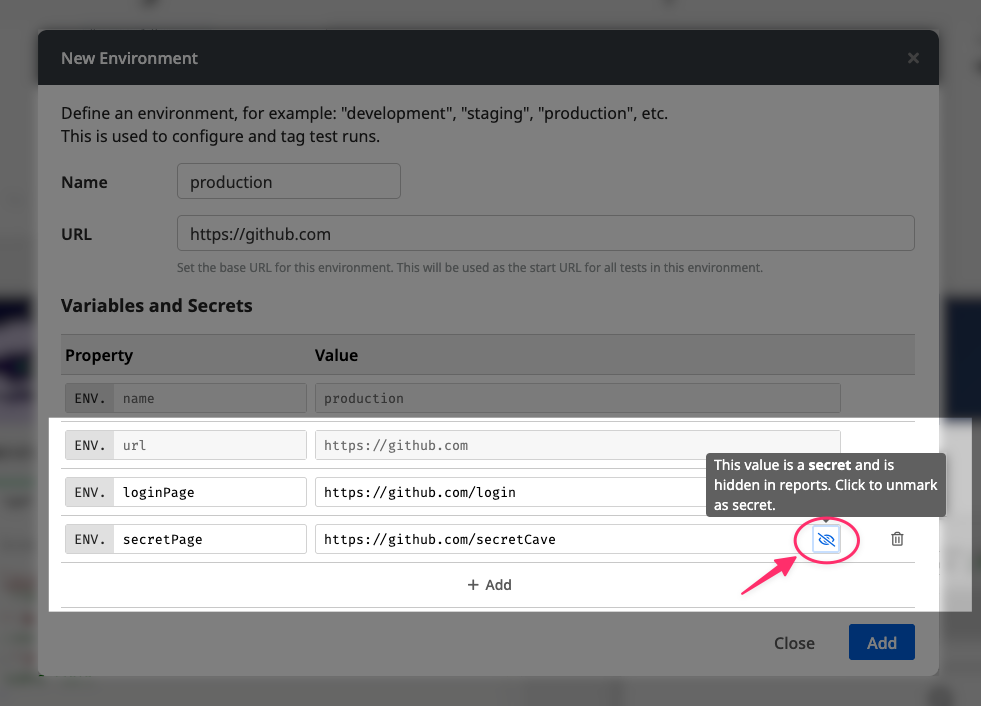
2. Name the Environment
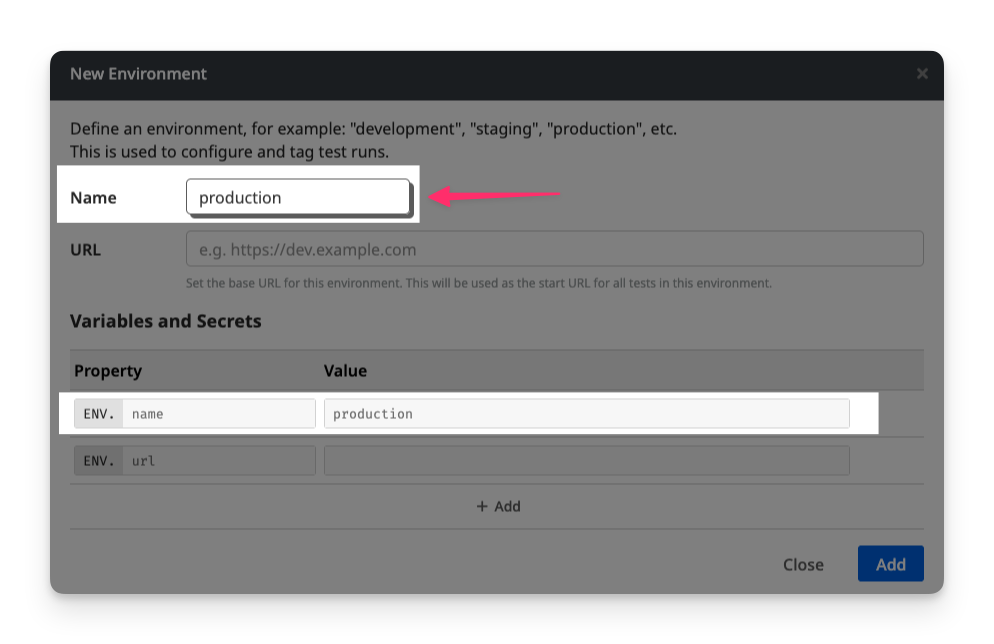
Enter a descriptive name, such as uat, production, or staging.
This name will be available in your test script as the property ENV.name.
3. Set the Environment URL
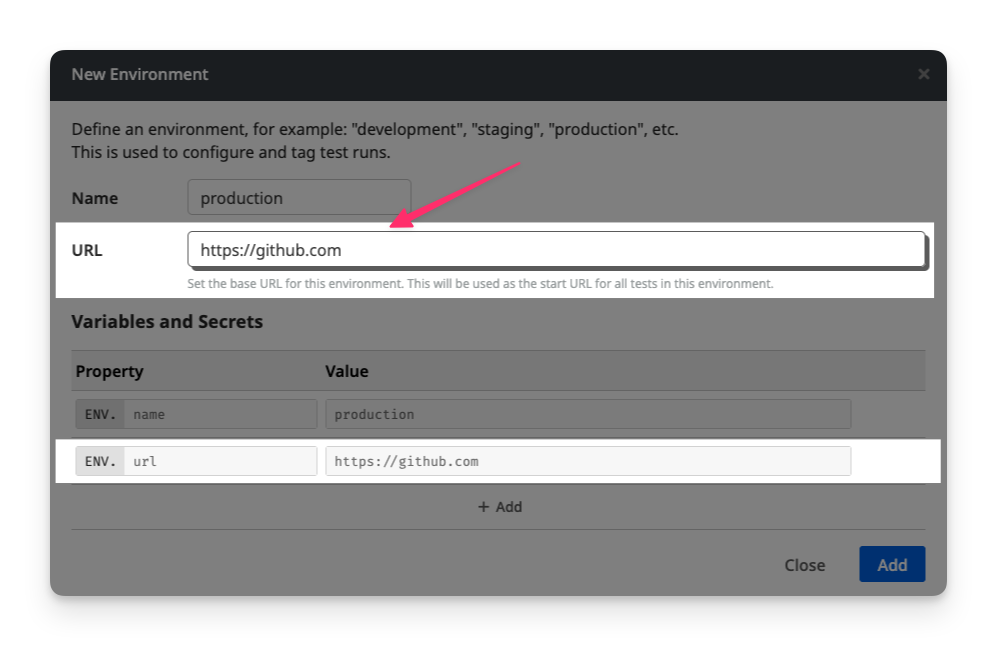
Provide the base URL for the environment (e.g., https://uat.example.com).
This URL will be available in your test script as the property ENV.url.
4. Add Variables and Secrets
You can define custom variables specific to the environment, such as base_path, api_key, etc...
Click + Add to create a new variable, and fill in its name and value.
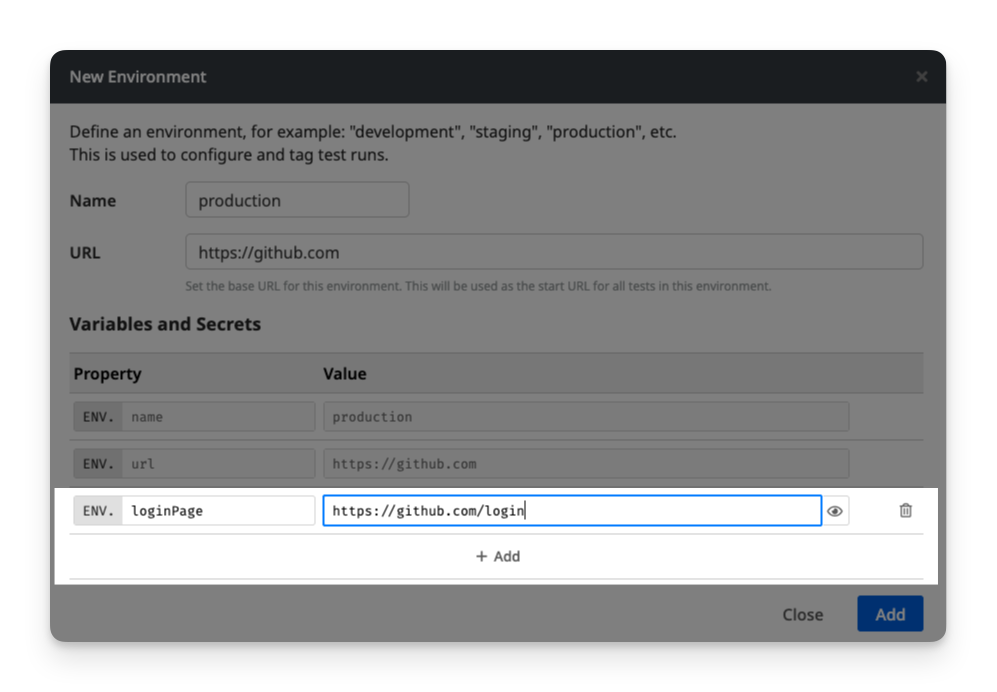
To mark a variable as a secret (so it will be masked in logs and reports), click the eye icon next to it.
5. Save the Environment
Click Add to save your new environment. You can now select it as the active environment for your test runs.
Using Environment Variables in Test Scripts
You can use its variables in your test scripts through the ENV object.
javascript
I.goTo(ENV.url)
I.fill("Email", ENV.admin_email)